
Announcing DataTables 3.2: Group rows by common field values
We’re pleased to announce an exciting new update to our DataTables layout. This release sees the addition of row groupings, a highly anticipated feature that will transform the way you organize data! With row grouping, you can effortlessly group rows in a table based...

We’re pleased to announce an exciting new update to our DataTables layout. This release sees the addition of row groupings, a highly anticipated feature that will transform the way you organize data!
With row grouping, you can effortlessly group rows in a table based on a common field value, bringing a new level of organization and clarity to your data.
Keep reading to find out everything you need to know.
Grouping rows by a common field value
You can enable the new “RowGroup” feature in the View settings. Simply edit your View, scroll down to the View settings, click on the “DataTables” tab and check the box labeled “Enable RowGroup Tables”.
After that, you’ll need to select a field to use for row groupings. This should be a field with limited choices/values, as all rows with the same field value will be grouped together under that value.
Finally, choose where the row group header should be positioned, and select the group sort direction.

Here’s what row groupings look like on the front end. In this example, we’re grouping entries by the “Category” field (either Finance, Legal, Marketing or Technical).
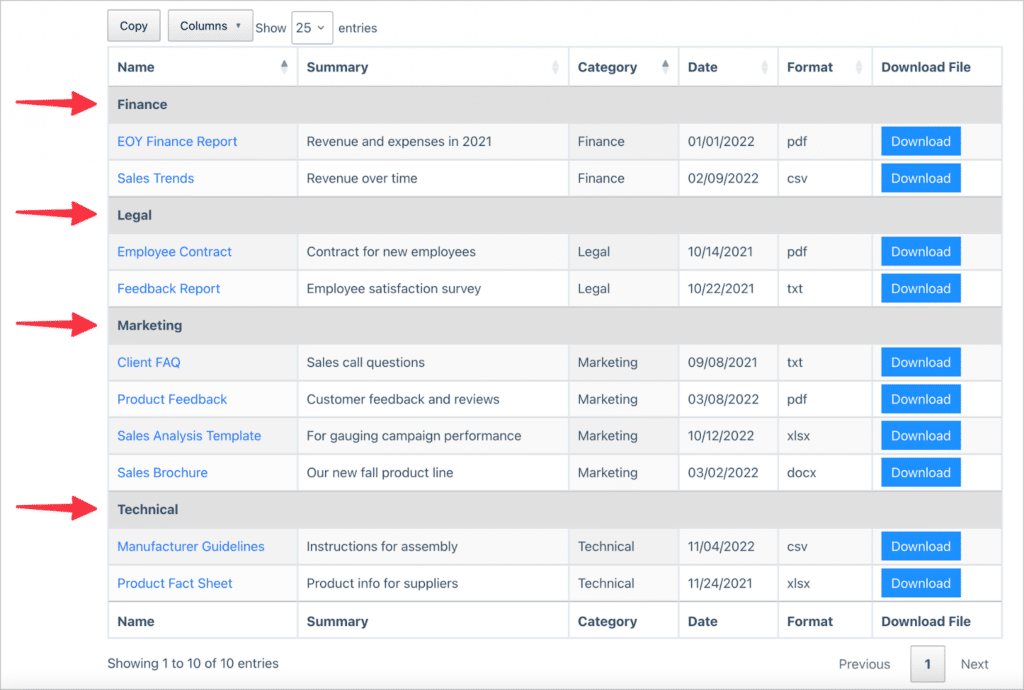
As you can see, all rows are grouped together based on their category, and each category acts as a subheading in the table. We’re excited about all the ways this new feature can help you optimize your data organization and presentation!
Upgrade your DataTables now
By grouping rows based on a common field value, you can now bring enhanced clarity and organization to your tables. To experience the power of RowGroup firsthand, don’t forget to update DataTables to the latest version!
If you would like to see the full release, check out the changelog here.

Helpful tips right in your inbox.
Subscribe to our weekly newsletter for tips, special offers, and more!
Helpful tips right in your inbox.
Subscribe to our weekly newsletter for tips, special offers, and more!

Helpful tips right in your inbox.
Subscribe to get the latest articles, information on releases and helpful Gravity Forms tips!
More articles

Random Test
Let’s compare comparision with regular post

SHORTCODE TEST
Normal shortcodes akjdhajksd [gravityview id=”123″] asdasd [gvlogic] asdasd asdasd [gv_entry_link] asdasd Shortcodes with inline code akjdhajksd [gravityview id=”123″] asdasd [gvlogic] asdasd asdasd [gv_entry_link] asdasd Shortcodes escaped akjdhajksd [[gravityview id=”123″]] asdasd [[gvlogic]] asdasd asdasd [[gv_entry_link]] asdasd this is the [[gvlogic]] shortcode this is the [[gvlogic]]…

How to create a dynamic careers page on WordPress using GravityKit
In this tutorial, you’ll learn how to build a fully functional and user-friendly careers page using Gravity Forms and GravityView. We’ll walk through creating job listings, application forms, and admin views so visitors can browse open positions and apply directly, while hiring teams can…