
Announcing GravityExport 1.1: Trigger exports manually and new Dropbox connection
We’re pleased to announce the release of GravityExport 1.1. This new update sees the addition of manual trigger exports, allowing you to schedule reports using cron jobs. We’ve also added a better way to connect your Dropbox account. Keep reading as we unpack the...

We’re pleased to announce the release of GravityExport 1.1. This new update sees the addition of manual trigger exports, allowing you to schedule reports using cron jobs. We’ve also added a better way to connect your Dropbox account.
Keep reading as we unpack the full release below!
Trigger exports on a schedule using a URL
The GravityExport “Save” feed allows you to send entry reports to remote storage locations like Dropbox or a server running SFTP. With this latest update, you now have the option to manually trigger the feed by calling a public URL (instead of having the feed being processed with every new entry).
This makes for some neat functionality. Having more control over when the feed is processed allows you to schedule cron jobs to export entry reports at defined time intervals (e.g. every day, week or month).
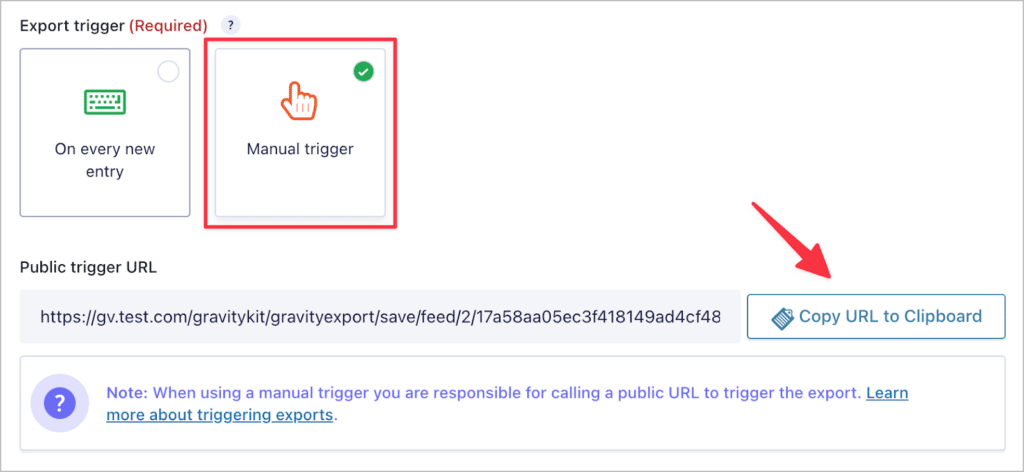
Remember, when selecting the “Manual trigger” option, the feed will no longer run every time you receive a new entry! Instead, you’ll be responsible for triggering the feed using the public trigger URL.
New Dropbox connection
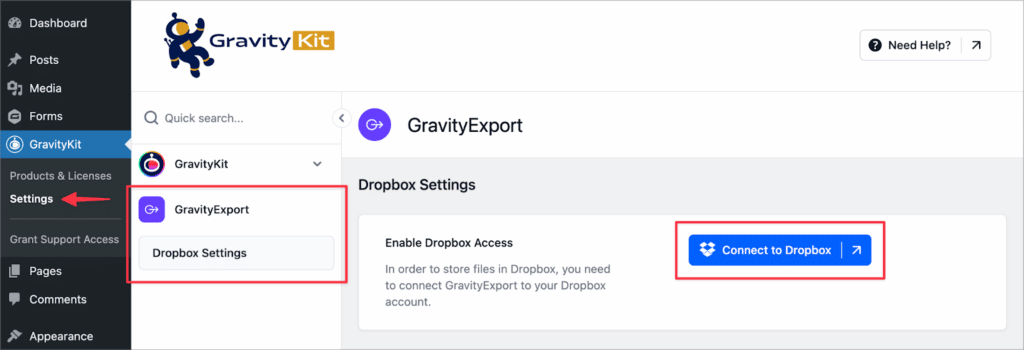
In GravityExport 1.1, we’ve made it easier and more secure to connect your Dropbox account to GravityExport. Go to the GravityKit “Settings” page, click on “GravityExport” and then click “Connect to Dropbox”. You’ll then be taken to Dropbox to complete the connection.
Update GravityExport today
GravityExport 1.1 includes the ability to manually trigger exports using a public URL. Using a cron service, you can set reports to export at defined time intervals (such as every week). We also made it easier to connect your Dropbox account.
You can update your GravityExport plugin from the GravityKit “Products & Licenses” page. If you want to see the full release, you can view the changelog here.

Helpful tips right in your inbox.
Subscribe to get the latest articles, information on releases and helpful Gravity Forms tips!
More articles

Random Test
Let’s compare comparision with regular post

SHORTCODE TEST
Normal shortcodes akjdhajksd [gravityview id=”123″] asdasd [gvlogic] asdasd asdasd [gv_entry_link] asdasd Shortcodes with inline code akjdhajksd [gravityview id=”123″] asdasd [gvlogic] asdasd asdasd [gv_entry_link] asdasd Shortcodes escaped akjdhajksd [[gravityview id=”123″]] asdasd [[gvlogic]] asdasd asdasd [[gv_entry_link]] asdasd this is the [[gvlogic]] shortcode this is the [[gvlogic]]…

How to create a dynamic careers page on WordPress using GravityKit
In this tutorial, you’ll learn how to build a fully functional and user-friendly careers page using Gravity Forms and GravityView. We’ll walk through creating job listings, application forms, and admin views so visitors can browse open positions and apply directly, while hiring teams can…