
New Release: Introducing Gravity Forms Calendar 2.0
We’re excited to announce the release of Gravity Forms Calendar 2.0! This new update sees the addition of calendar subscription links, allowing users to subscribe to your calendar feed using Google Calendar or Apple Calendar. But that’s not all. In Calendar 2.0 you’ll also...

We’re excited to announce the release of Gravity Forms Calendar 2.0! This new update sees the addition of calendar subscription links, allowing users to subscribe to your calendar feed using Google Calendar or Apple Calendar.
But that’s not all. In Calendar 2.0 you’ll also find some powerful new shortcodes, additional Gutenberg blocks, and all new calendar controls for switching between layout types 😎
Keep reading as we unpack the full release below.
Calendar Subscription Links
In the GravityView Calendar feed settings, you’ll see a new option allowing you to create a calendar subscription link. When you enable the link, a new URL will be generated, which you can share with users who want to subscribe to your calendar.
Users with Apple or Google Calendar can open the link to “sync” their calendar to your GravityView calendar feed. This means that events on their calendar will mirror the events displayed in your GravityView calendar feed.
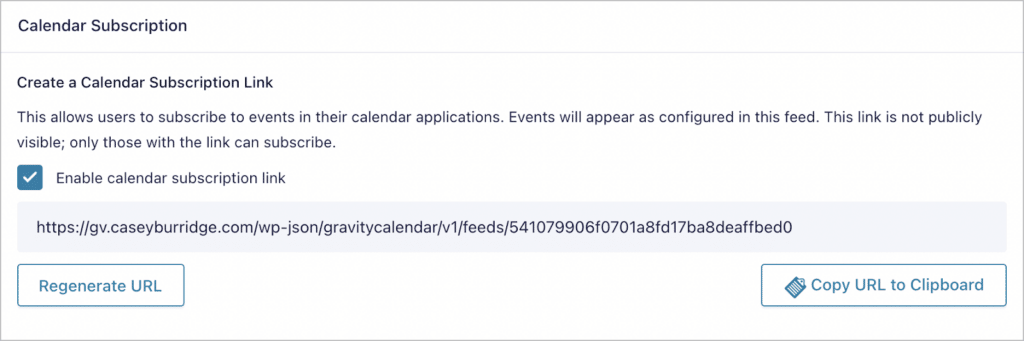
By enabling subscription links, you can:
- Allow users to subscribe to your calendar feed using their Google Calendar or Apple Calendar
- Allow users to download an
.icsfile for importing into any calendar application - Add calendar buttons to your website, making it easy to share links to your calendar
You can implement these new features using blocks or shortcodes.
New GravityView Calendar Blocks
This update sees the addition of two new GravityView calendar blocks – “GravityView Calendar Buttons” and “GravityView Calendar Link”.
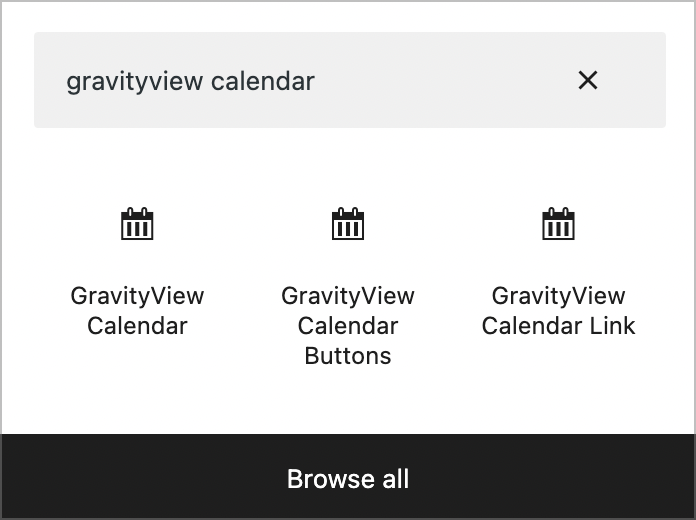
The GravityView Calendar Buttons block adds two new buttons to your page layout. One of the buttons allows users to export your calendar feed as an .ics file and the other button allows users to copy the calendar feed URL.

The “GravityView Calendar Link” block adds a link that allow users to subscribe to your calendar feed in Google Calendar or Apple Calendar.
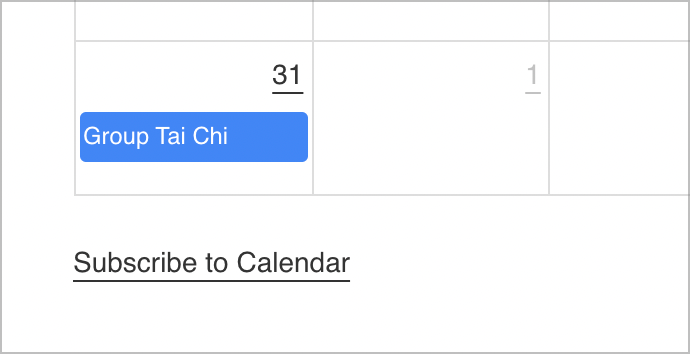
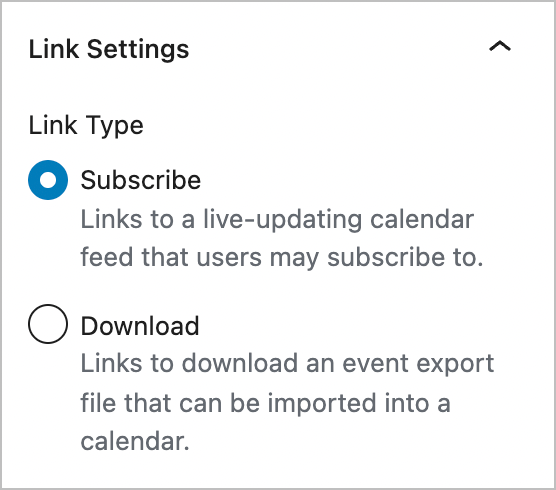
When you open the block settings, you’ll see an option to change the link type. There are two options: Subscribe or Download.
- Subscribe – Links to a live-updating calendar feed
- Download – Allows users to download an
.icsfile containing calendar event information
Learn more about the difference between subscribing to a calendar feed and downloading an .ics file here.

Pro Tip
Check out our documentation to learn more about these new calendar blocks.
New Shortcodes
You can also display calendar links/buttons anywhere on your website using these new shortcodes:
[[gv_calendar_link]][[gv_calendar_export_button]][[gv_calendar_copy_button]]
Pro Tip
Check out our documentation to learn about these new shortcodes.
New Calendar Controls
In the calendar feed settings, you’ll notice a range of new calendar controls.

These new controls allow users to switch between layout types on the front end. Check out the video below to see a demo of how this works.
Upgrade to Gravity Forms Calendar Version 2.0 Now
You can now upgrade to Calendar 2.0 from the “Manage Add-Ons” page in WordPress. Alternatively, download the plugin file from your Account page. Just remember, you’ll need WordPress 5.3 or above and PHP 7.4 or newer.
If you’d like to see the full release, including all fixes and improvements, check out the changelog.
Helpful tips right in your inbox.
Subscribe to get the latest articles, information on releases and helpful Gravity Forms tips!
More articles

Random Test
Let’s compare comparision with regular post

SHORTCODE TEST
Normal shortcodes akjdhajksd [gravityview id=”123″] asdasd [gvlogic] asdasd asdasd [gv_entry_link] asdasd Shortcodes with inline code akjdhajksd [gravityview id=”123″] asdasd [gvlogic] asdasd asdasd [gv_entry_link] asdasd Shortcodes escaped akjdhajksd [[gravityview id=”123″]] asdasd [[gvlogic]] asdasd asdasd [[gv_entry_link]] asdasd this is the [[gvlogic]] shortcode this is the [[gvlogic]]…
How to create a dynamic careers page on WordPress using GravityKit
In this tutorial, you’ll learn how to build a fully functional and user-friendly careers page using Gravity Forms and GravityView. We’ll walk through creating job listings, application forms, and admin views so visitors can browse open positions and apply directly, while hiring teams can…