
Import CSV to Gravity Forms with Import Entries 2.0
Import Entries 2.0 is hands-down the best and most powerful way to import a CSV into Gravity Forms.
Version 2.0 of Import Entries is rewritten from the ground up for reliability and ease of use. Version 2.0 includes a brand-new interface, which we will walk through now.
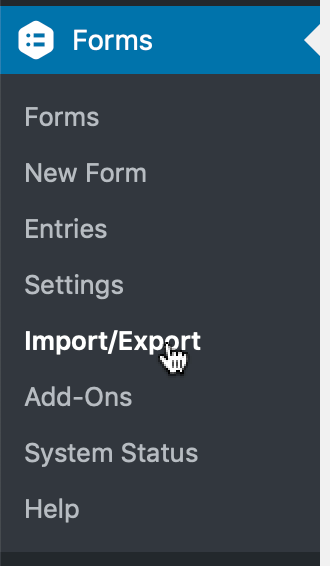
Start by going to the menu called “Import/Export” in Gravity Forms’ “Forms” menu #
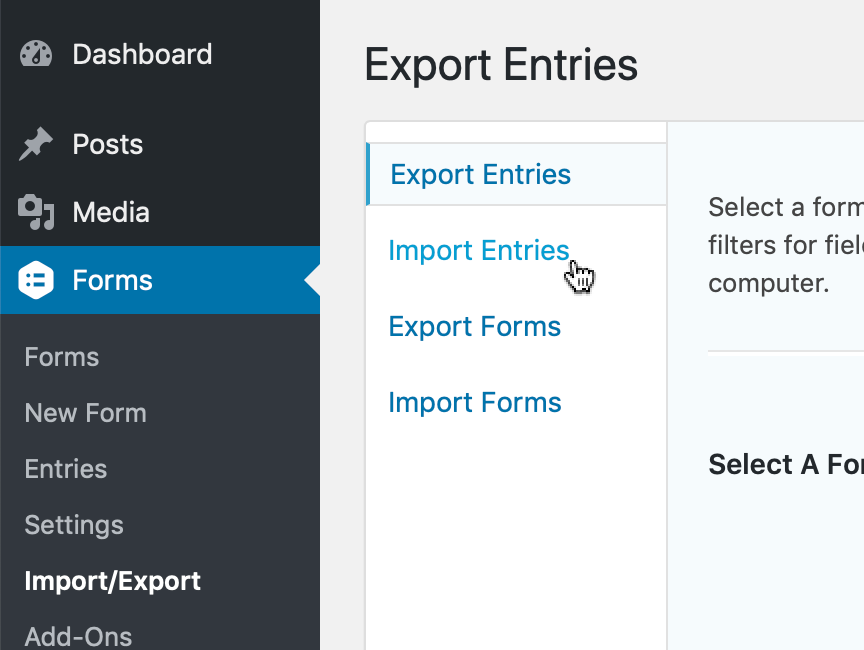
Click Import Entries #
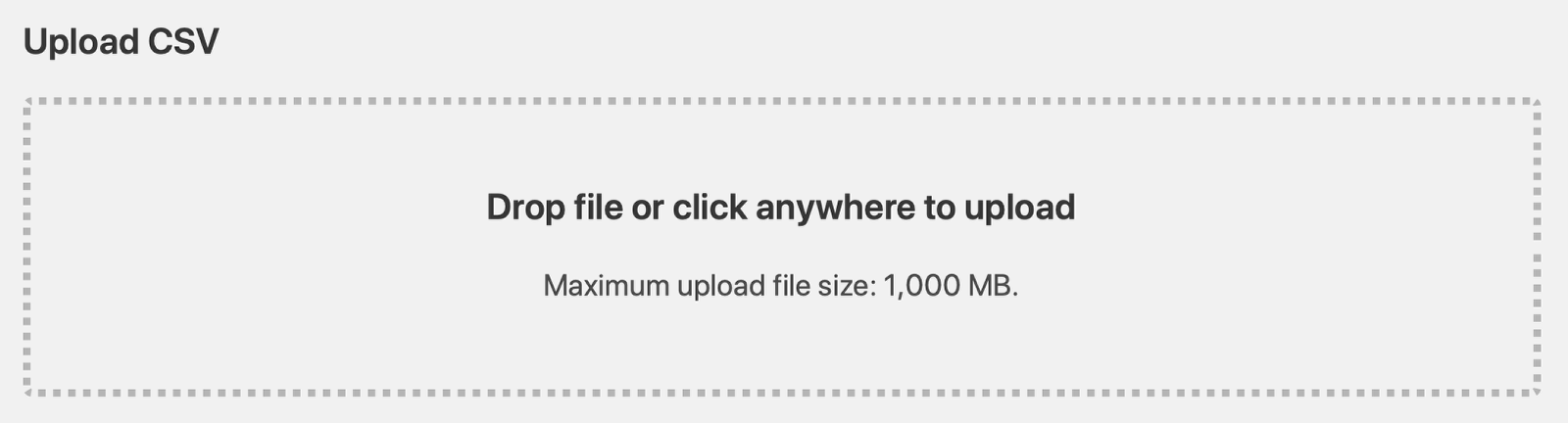
Drag a CSV file to the box, or click the box to select a CSV from your computer to upload. #
Choose whether to import entries into an existing form, or to create a new form #
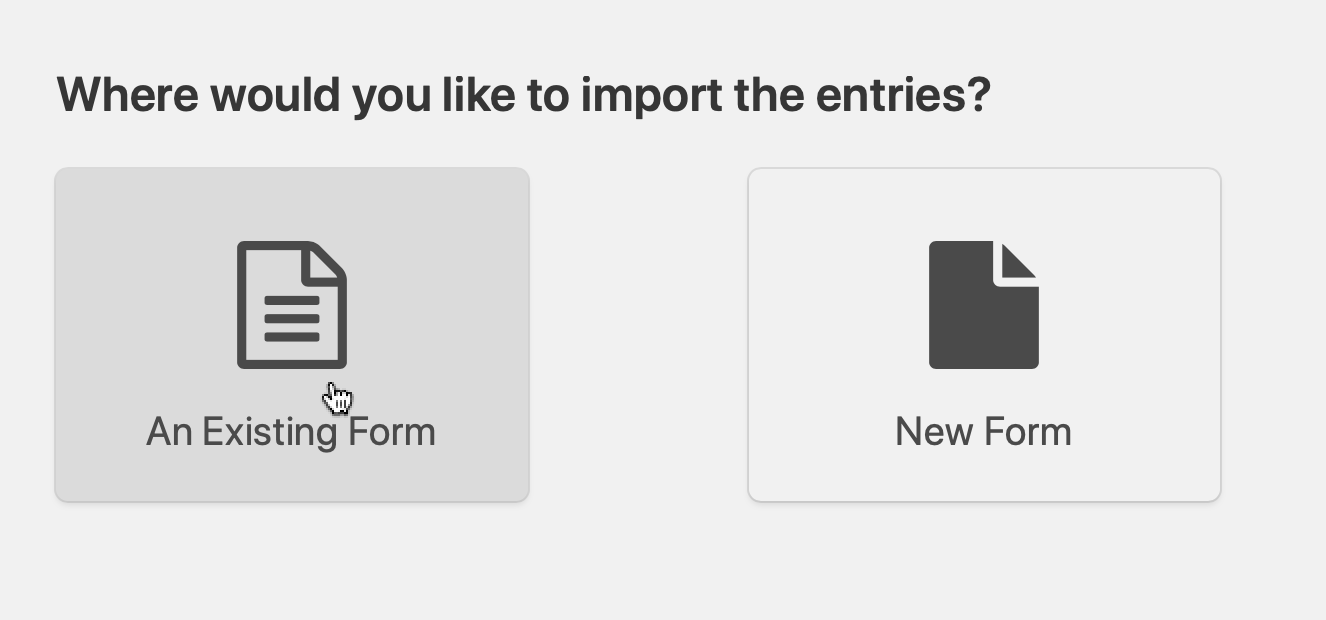
If you create a new form, the columns in the CSV will be turned into form fields in a new form #
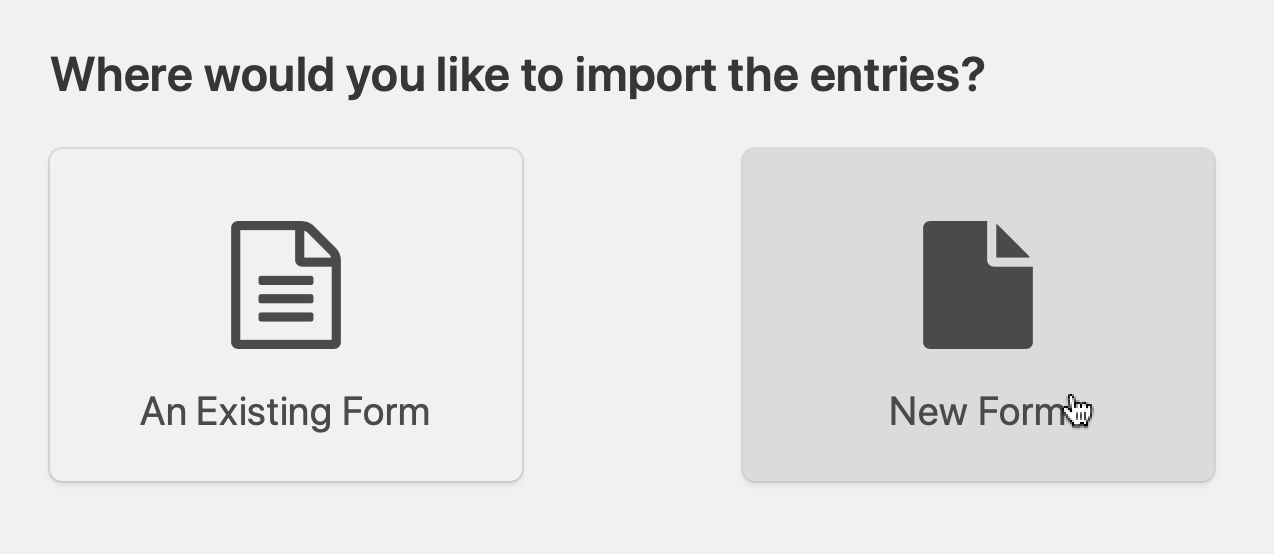
If you choose to import into an existing form, click on the form you want to import into #
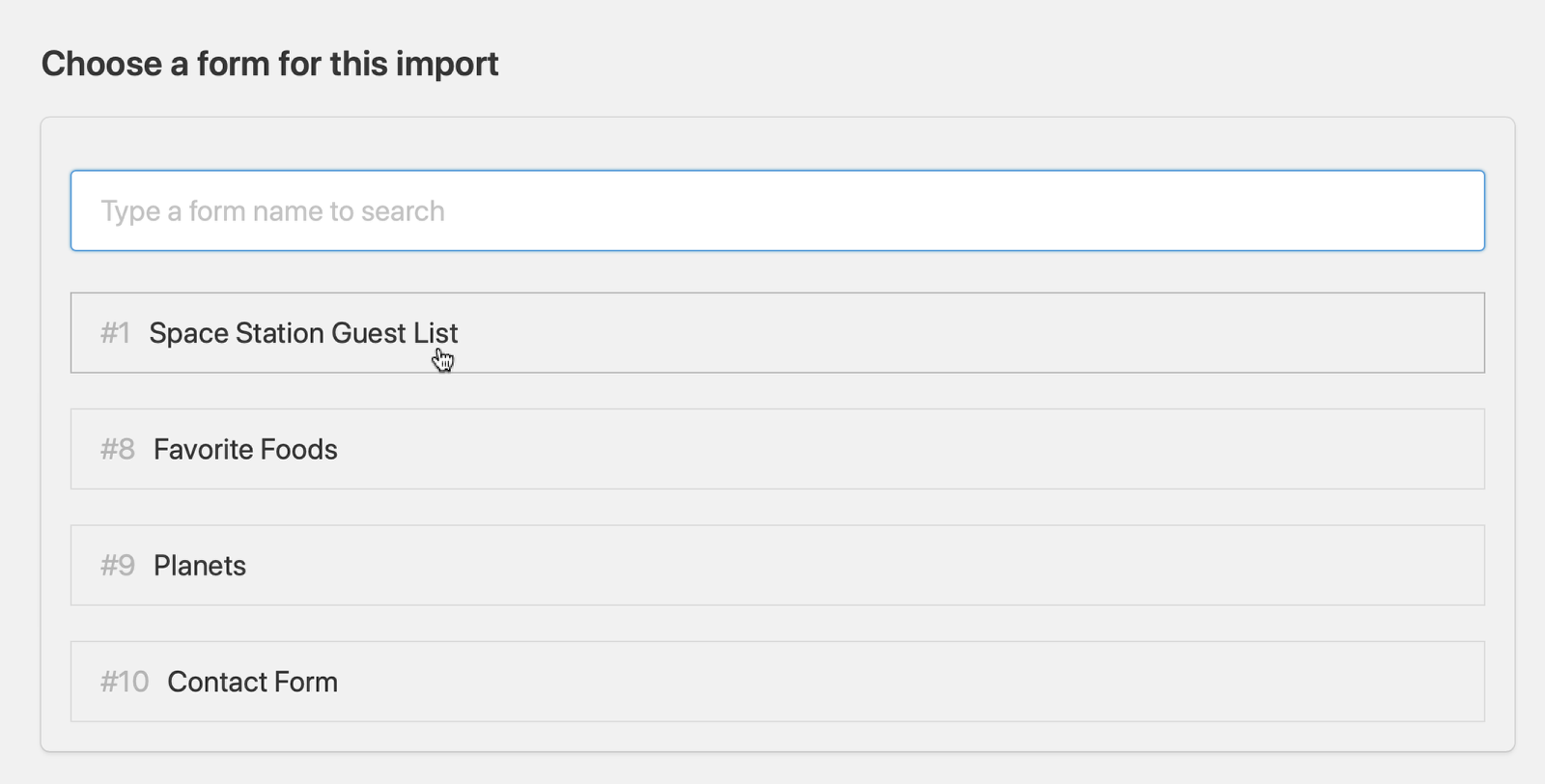
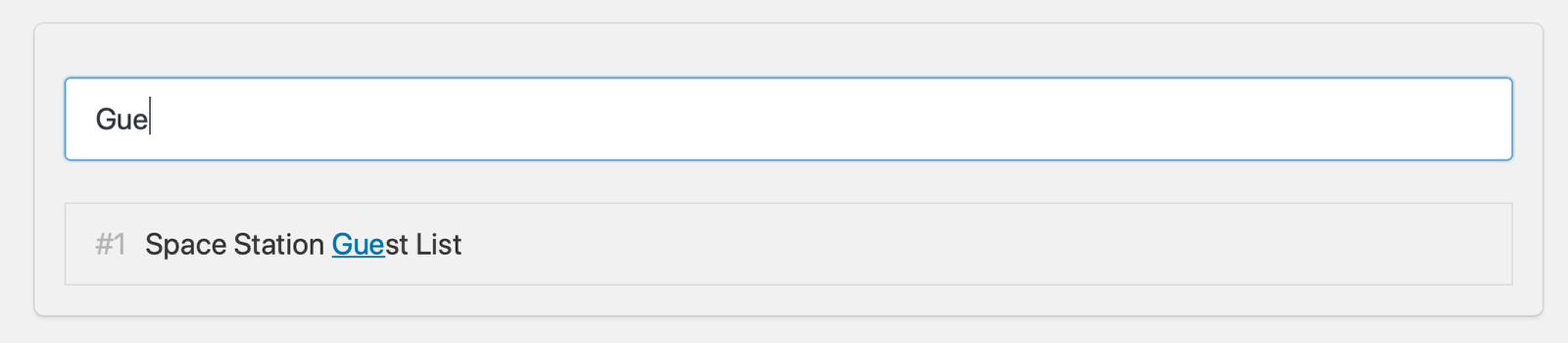
If you have many forms, you can type to search for the form you want to import to #
To modify the CSV file or the form being imported into, you can click the links at the top at any time #
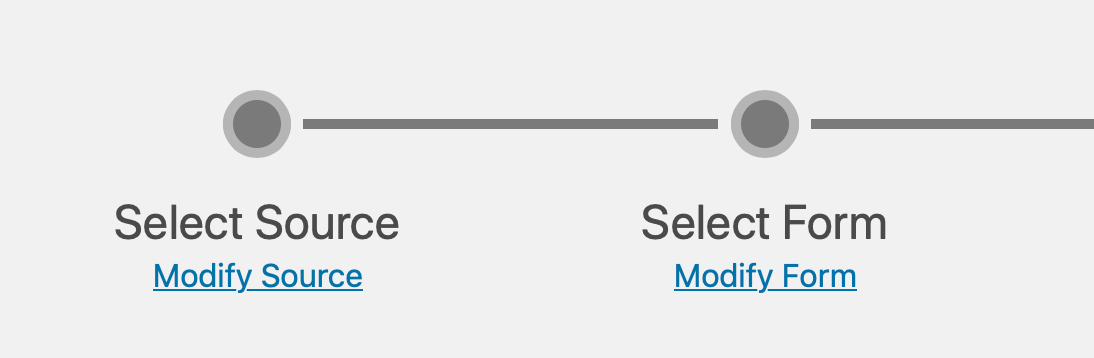
You can also press the back button in your browser.
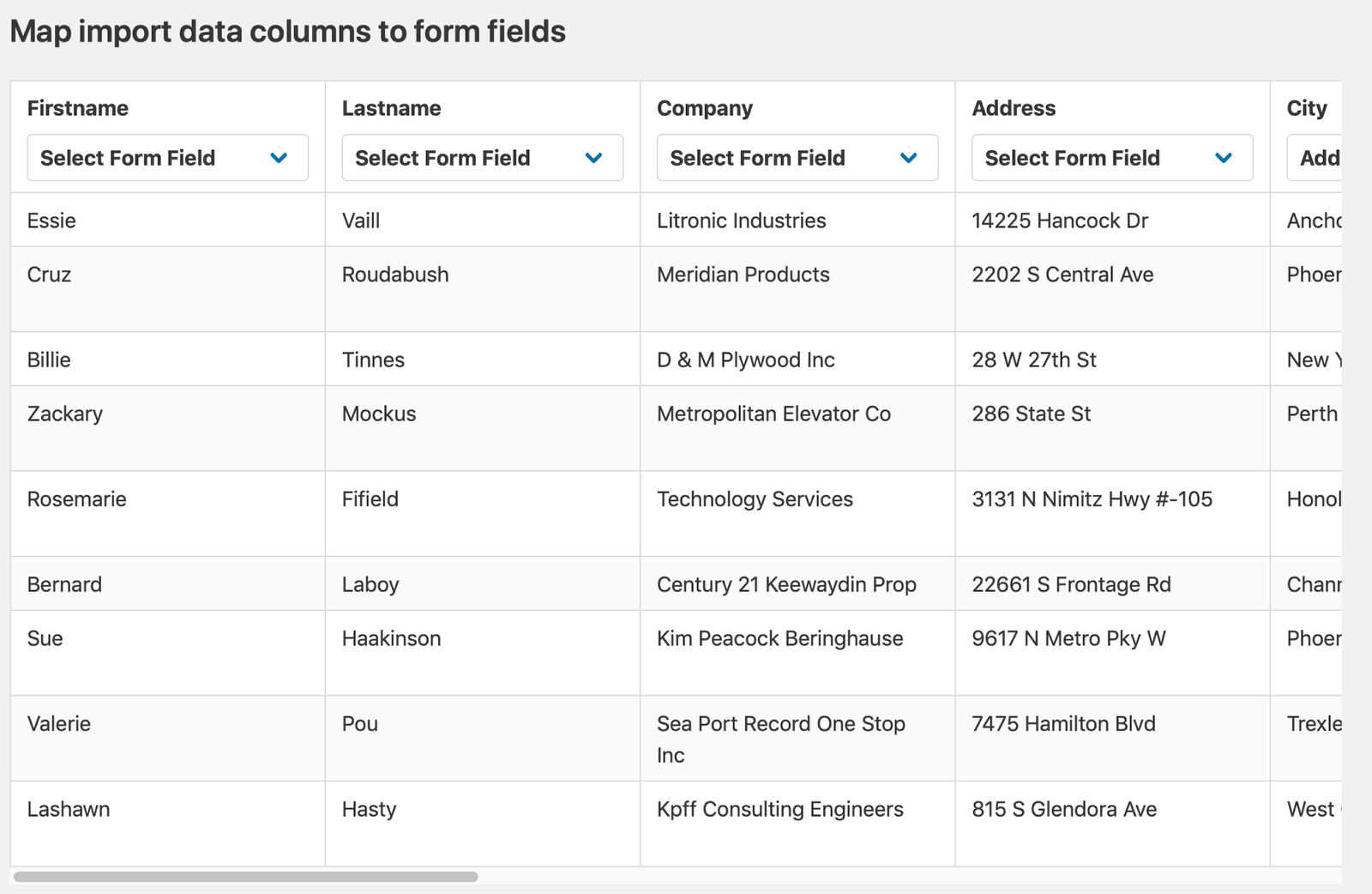
A preview of the uploaded file will be shown. #
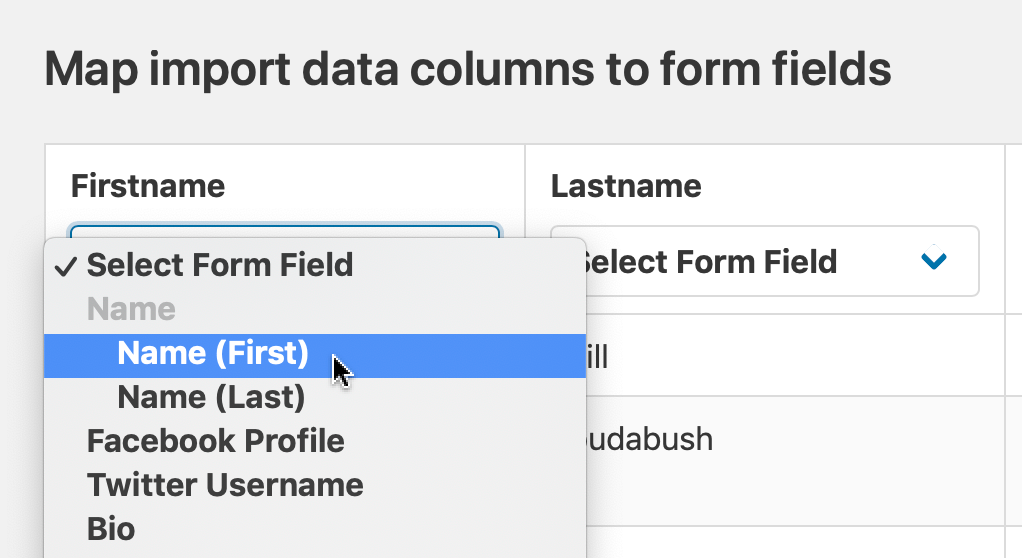
Choose which field the column data should be imported into #
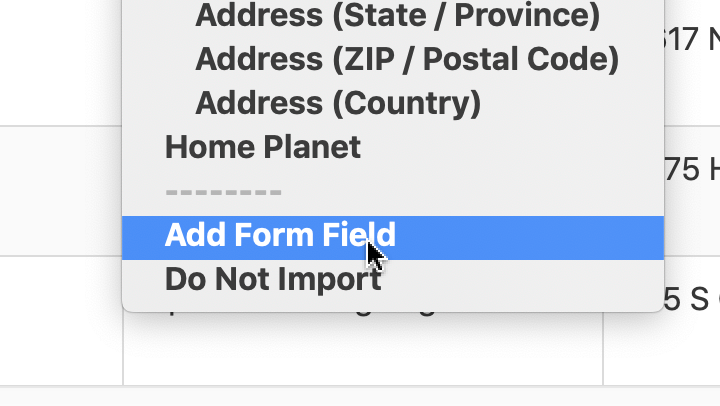
If a field does not exist, you can create one by selecting “Add Form Field” #
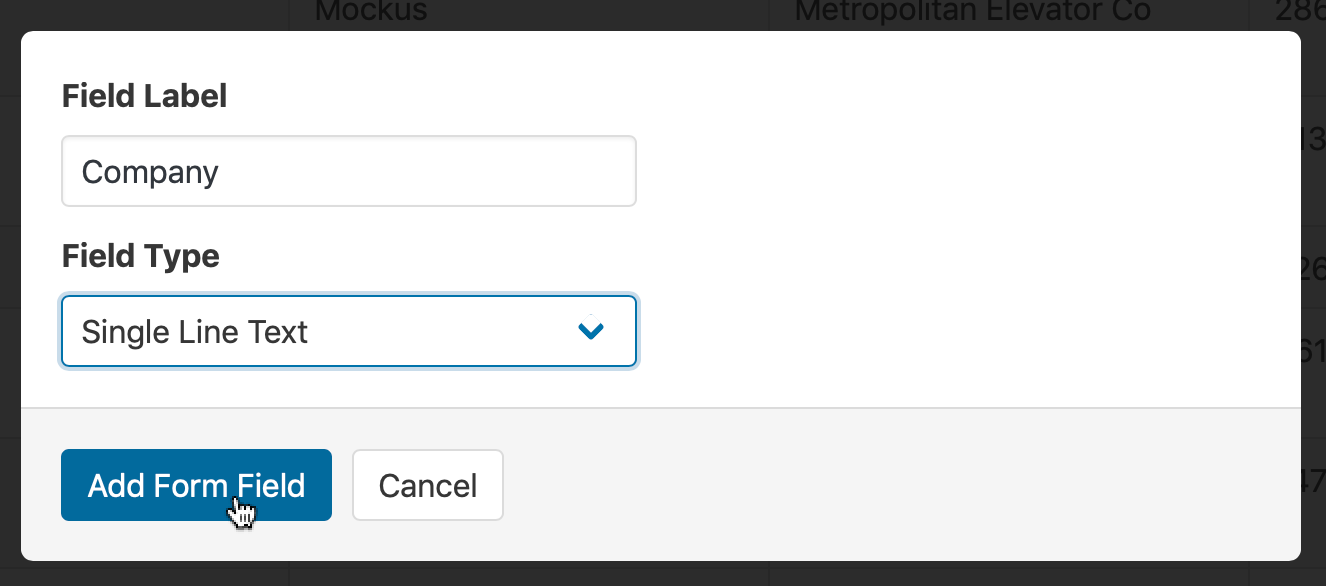
When adding a form field, you will be prompted to define the field label and the type of field #
To skip a column and not import it, select “Do Not Import” from the field dropdown #
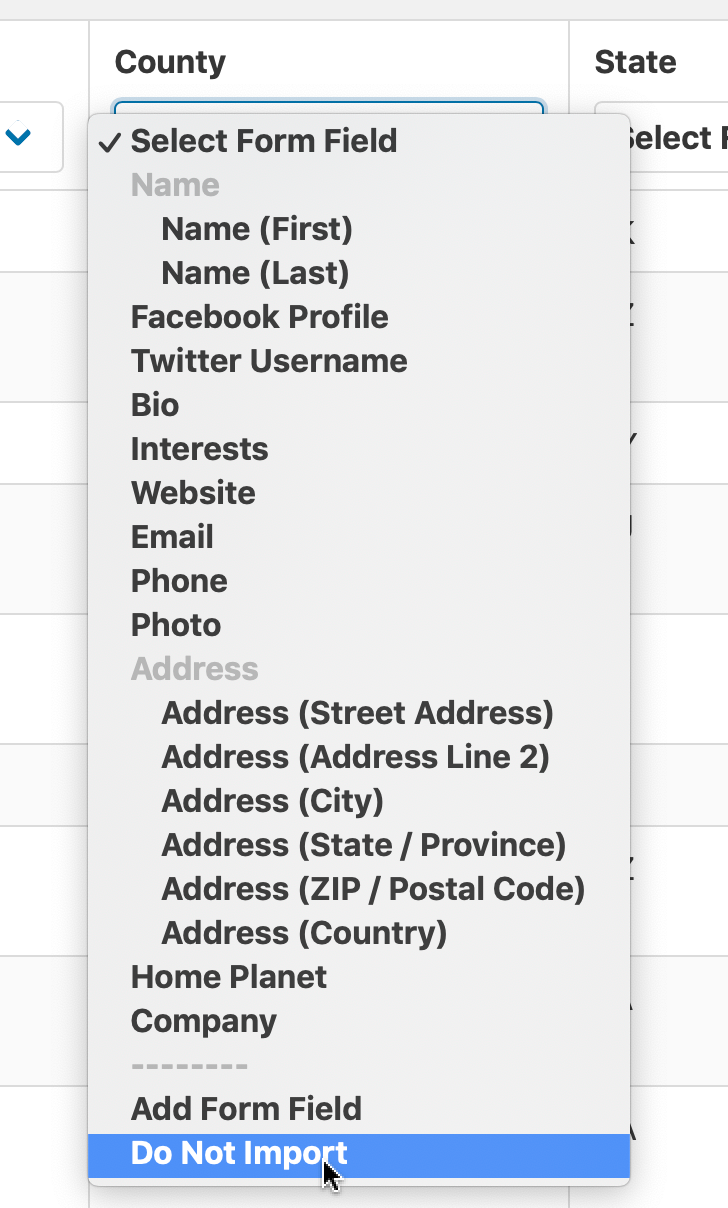
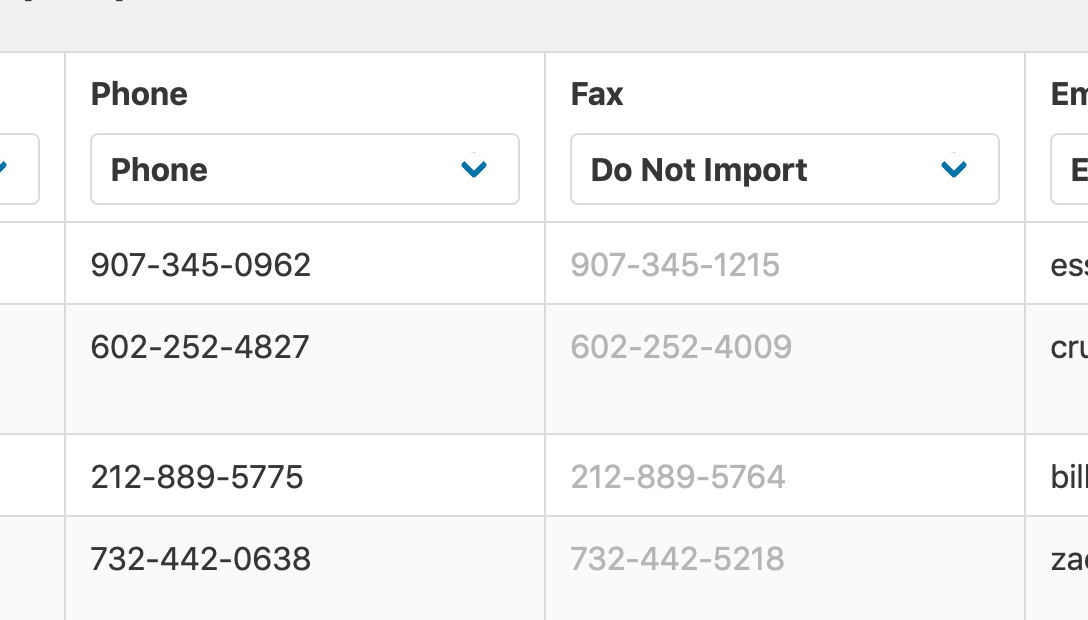
When a column is set to Do Not Import, the data preview will be grayed out. #
You can limit what is imported by enabling Conditional Import and defining rules #
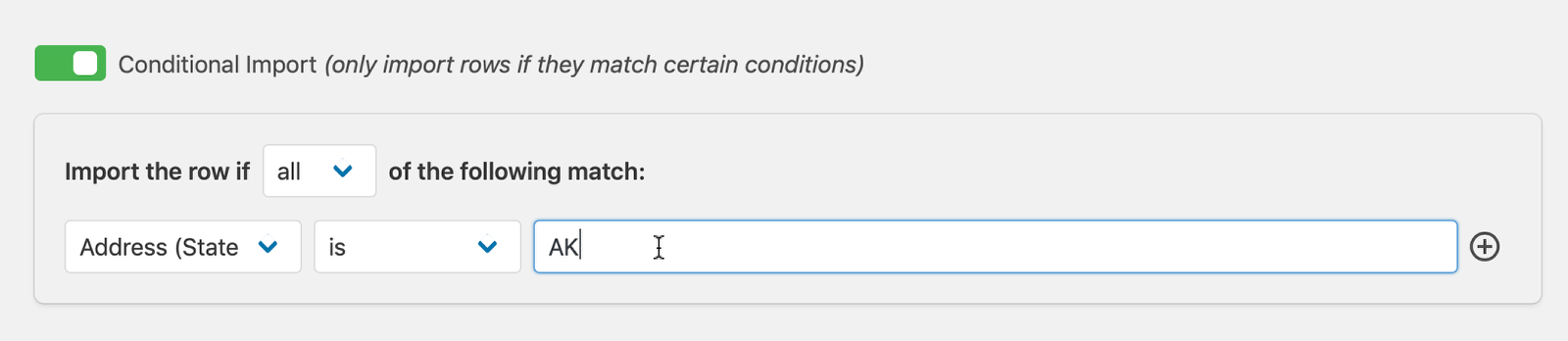
You can add multiple rules at once by clicking the plus button to the right of each rule.
Click Continue With Import to begin the import process #

You will see the progress of the import on the screen. #
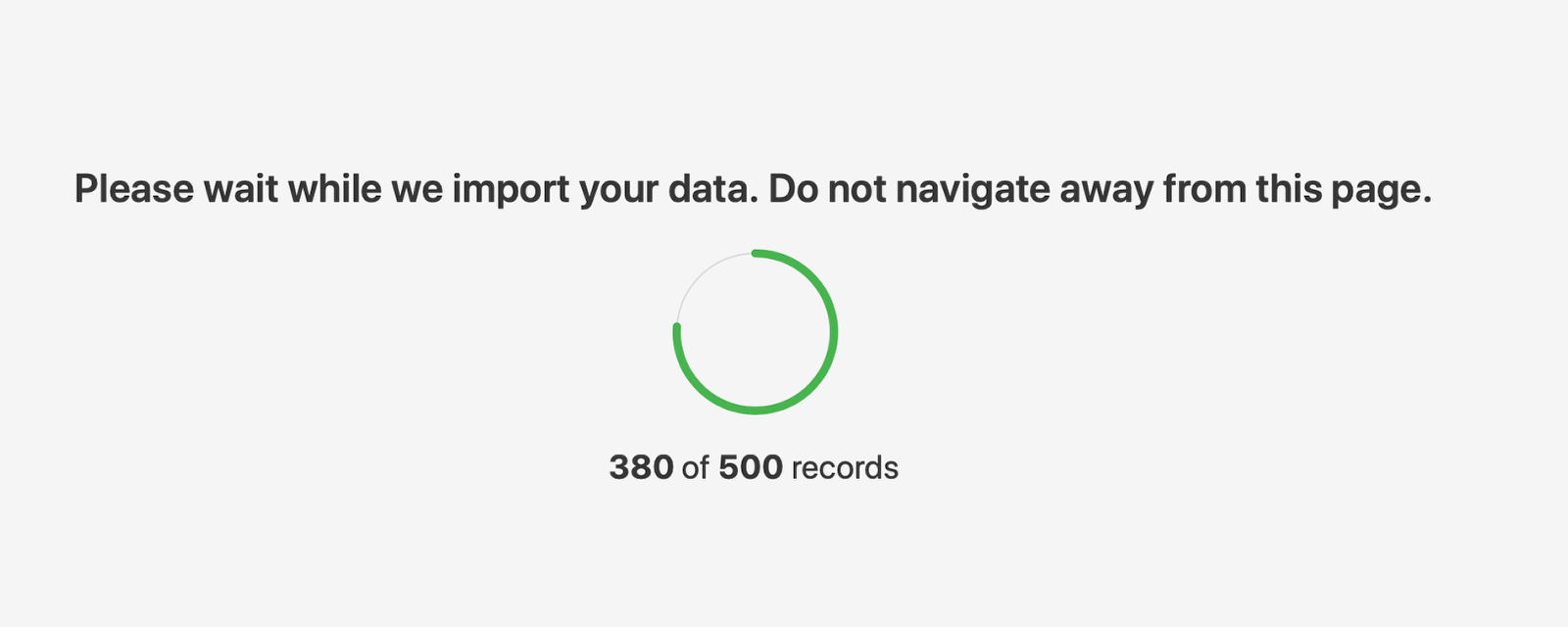
When the import is completed, you can start a new one or view the entries. #

Was this page helpful?


Table Of Contents
- Start by going to the menu called “Import/Export” in Gravity Forms’ “Forms” menu
- Click Import Entries
- Drag a CSV file to the box, or click the box to select a CSV from your computer to upload.
- Choose whether to import entries into an existing form, or to create a new form
- If you create a new form, the columns in the CSV will be turned into form fields in a new form
- If you choose to import into an existing form, click on the form you want to import into
- If you have many forms, you can type to search for the form you want to import to
- To modify the CSV file or the form being imported into, you can click the links at the top at any time
- A preview of the uploaded file will be shown.
- Choose which field the column data should be imported into
- If a field does not exist, you can create one by selecting “Add Form Field”
- When adding a form field, you will be prompted to define the field label and the type of field
- To skip a column and not import it, select “Do Not Import” from the field dropdown
- When a column is set to Do Not Import, the data preview will be grayed out.
- You can limit what is imported by enabling Conditional Import and defining rules
- Click Continue With Import to begin the import process
- You will see the progress of the import on the screen.
- When the import is completed, you can start a new one or view the entries.