
Completely deleting GravityView
Warning: If you follow these steps to delete GravityView data and then you re-install GravityView, it will be like installing GravityView for the first time. Be very sure you want to do this!
If you want to delete all traces of the GravityView plugin, here’s what to do.
This will delete all:
- GravityView “Views”-the WordPress “posts” that are stored as a Custom Post Type
- View layouts and settings, which are stored as custom post meta
- GravityView’s entry approval status, as stored in Gravity Forms entry metadata using the `is_approved` meta key
- GravityView-generated entry notes (entry approval notes and entry creator change notes). Notes added using the front-end Notes field will not be affected
- GravityView plugin settings
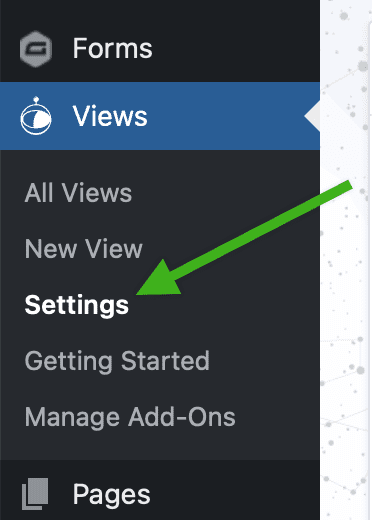
In the WordPress Dashboard, click on Views > Settings #
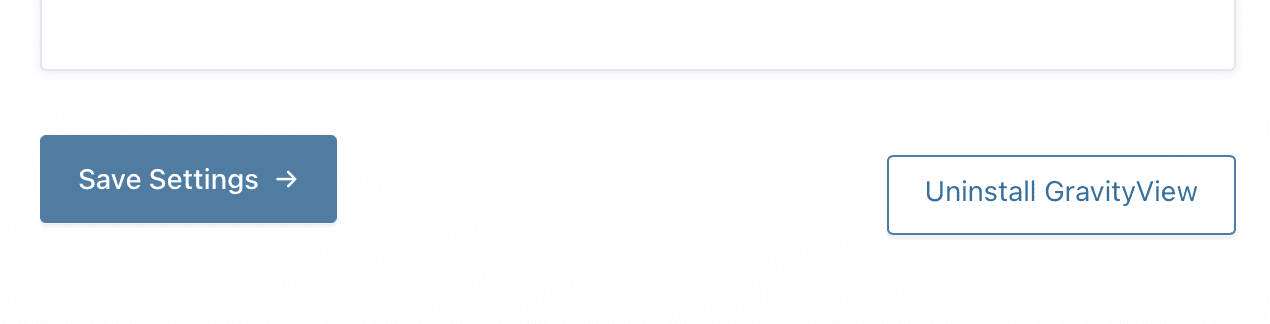
At the bottom of the page, click on the Uninstall GravityView button #
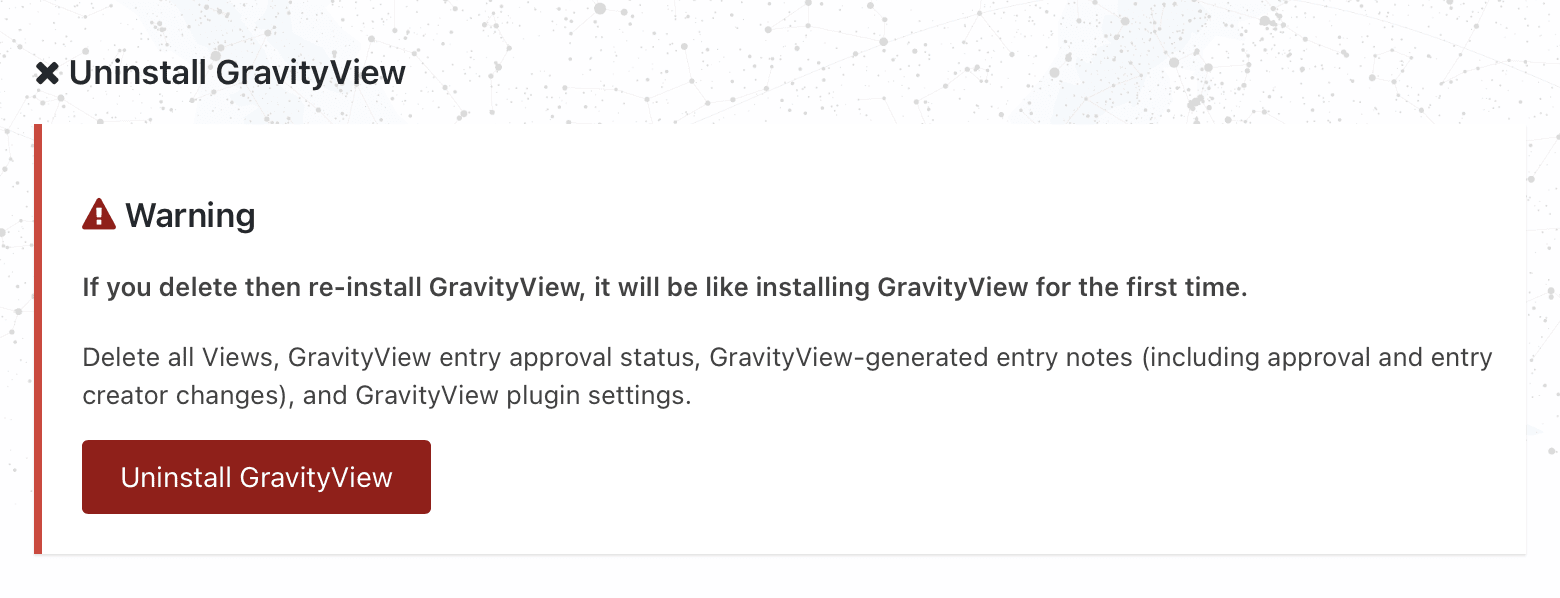
Then click on the other Uninstall GravityView button #
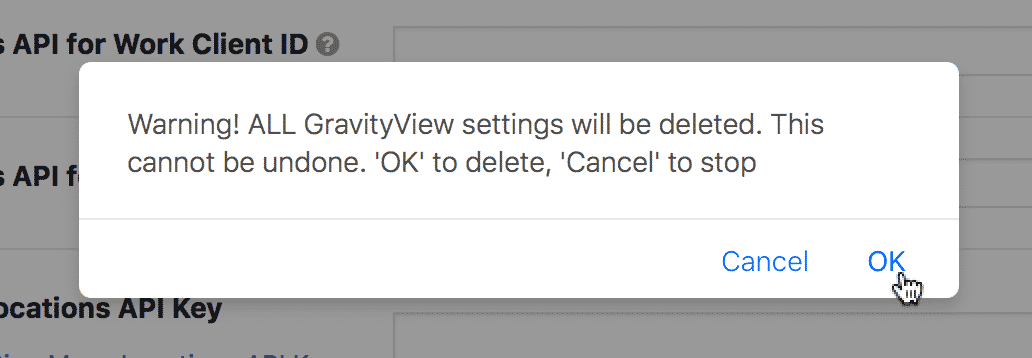
Then confirm the pop-up that warns you about what’s going to happen once again #
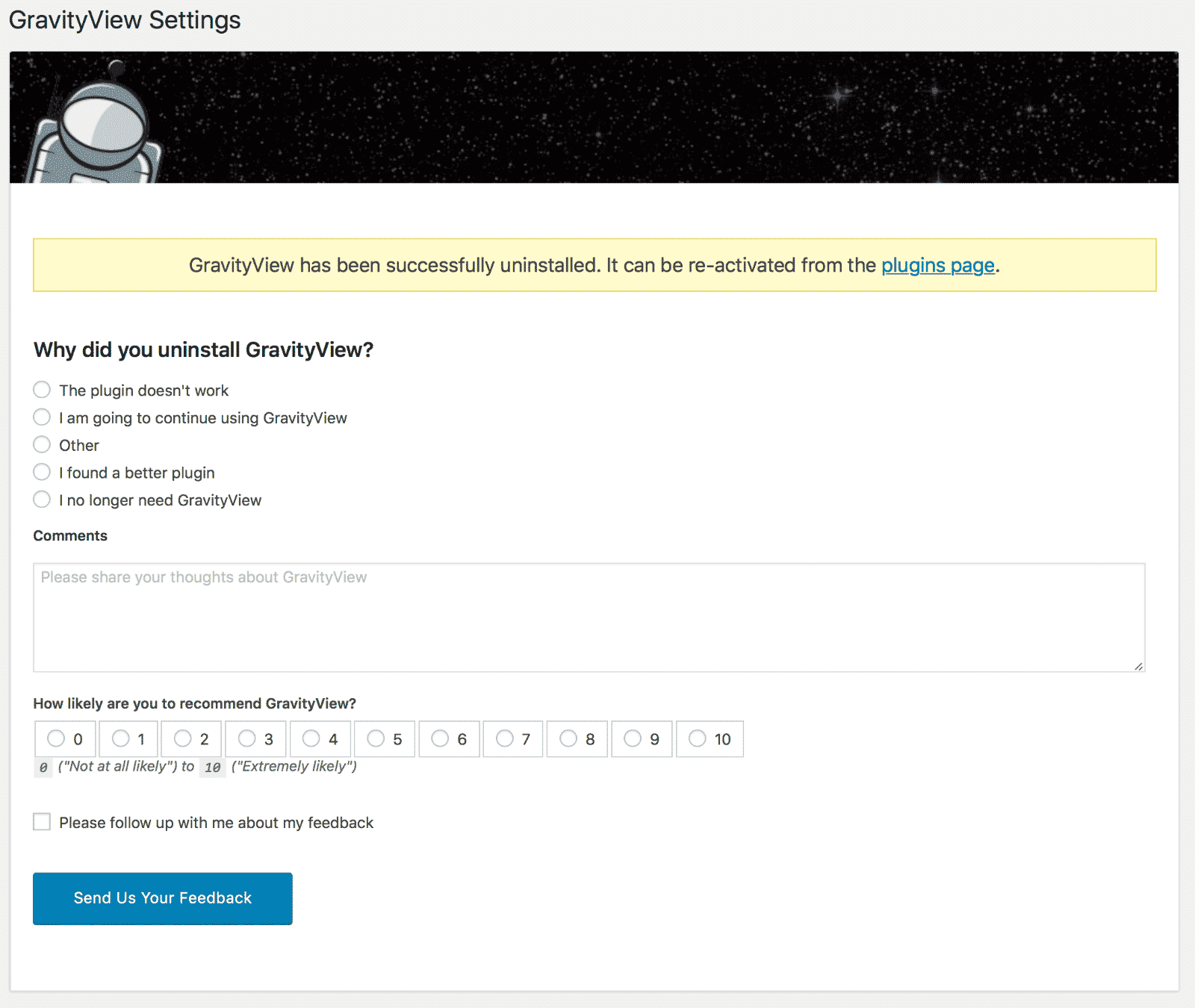
Please take a minute to let us know why you’re uninstalling GravityView! #
We want GravityView to be the best possible plugin. Your feedback is vital to us improving the plugin. We would appreciate any response you’re willing to share.
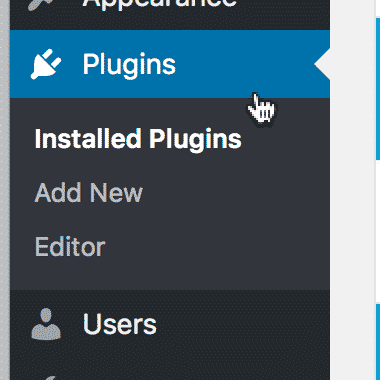
Go to the Plugins page #
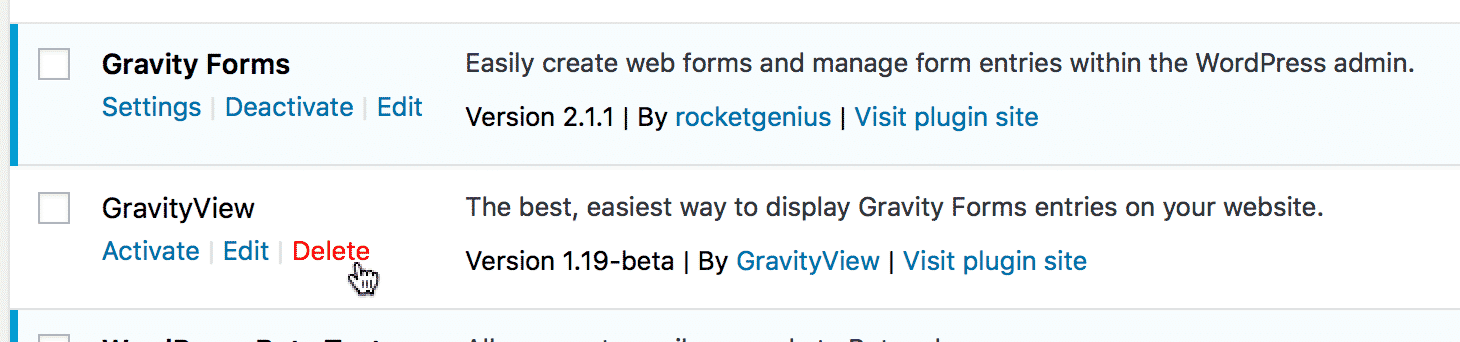
Click the Delete link #
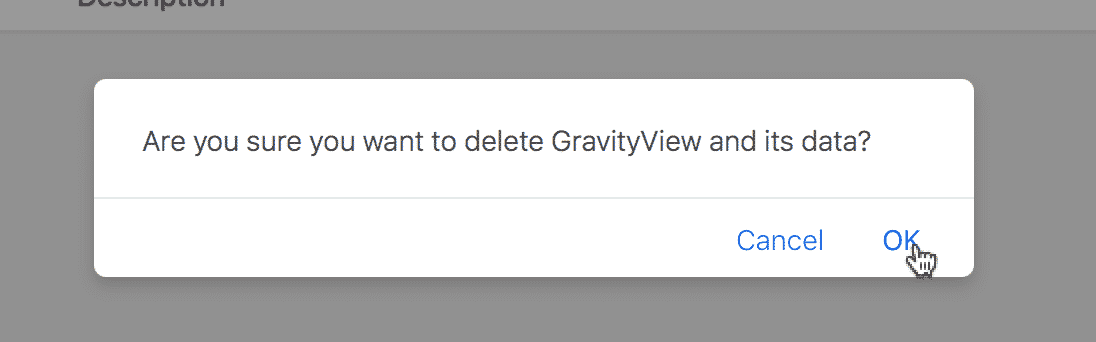
And then approve the pop-up alert #
And there you go: GravityView’s data has been removed and the plugin files have been deleted #
Was this page helpful?


Table Of Contents
- In the WordPress Dashboard, click on Views > Settings
- At the bottom of the page, click on the Uninstall GravityView button
- Then click on the other Uninstall GravityView button
- Then confirm the pop-up that warns you about what’s going to happen once again
- Please take a minute to let us know why you’re uninstalling GravityView!
- Go to the Plugins page
- Click the Delete link
- And then approve the pop-up alert
- And there you go: GravityView’s data has been removed and the plugin files have been deleted