
Embedding Single Entries in a Post or Page
Sometimes you may find it useful to embed single entries into a post or page instead of an entire View.
Prefer to Watch the Video?
When single entries are embedded in a page or post, they will be displayed according to how you configured the Single Entry Layout.
Please also note that:
- Editing an embedded entry works as usual
- Multiple entries can be embedded in the same post or page
There are three ways to embed single entries into posts/pages:
- Using the [gventry] shortcode
- Copying and pasting the single entry URL
- Using the “Add Media” button
We will run through each of these methods below.
1. Using the [gventry] Shortcode #
The [gventry] shortcode allows you to embed a single entry in a page, post, or custom content field.
The shortcode takes two parameters:
- entry_id (The ID of the entry you want to embed)
- view_id (The ID of the View that the entry is tied to)
Here’s what a completed shortcode looks like:
[gventry entry_id="6" view_id="137"]
Locating the Entry ID
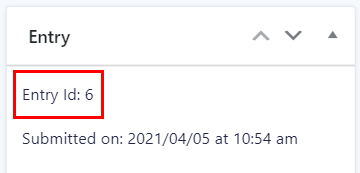
To get the ID for any given entry in Gravity Forms, log into your WordPress dashboard, hover over Forms, and click on Forms. Next, hover over your form and click on Entries. You should now see a list of all the entries for that form. Click on an entry. The entry ID will be displayed in a box on the right side of the page.
 Locating the View ID
Hover over Views in your sidebar and click All Views. Select the View that contains the entry you want to embed. You can find the View ID inside the Embed Shortcode.
![Status published, visibility public; shortcode for embedding: [gravityview id='137']. Update or move to trash options](data:image/svg+xml,%3Csvg%20xmlns='http://www.w3.org/2000/svg'%20viewBox='0%200%20362%20436'%3E%3C/svg%3E) 2. Copying and Pasting the URL #
2. Copying and Pasting the URL #
![Status published, visibility public; shortcode for embedding: [gravityview id='137']. Update or move to trash options](https://staging.gravitykit.com/wp-content/uploads/2026/04/file-sLukDVVosD.png) 2. Copying and Pasting the URL
2. Copying and Pasting the URL First, open your View on the front end and click on an entry to bring up its single entry page. If your entries don’t link through to a single entry, read: Linking to a Single Entry.
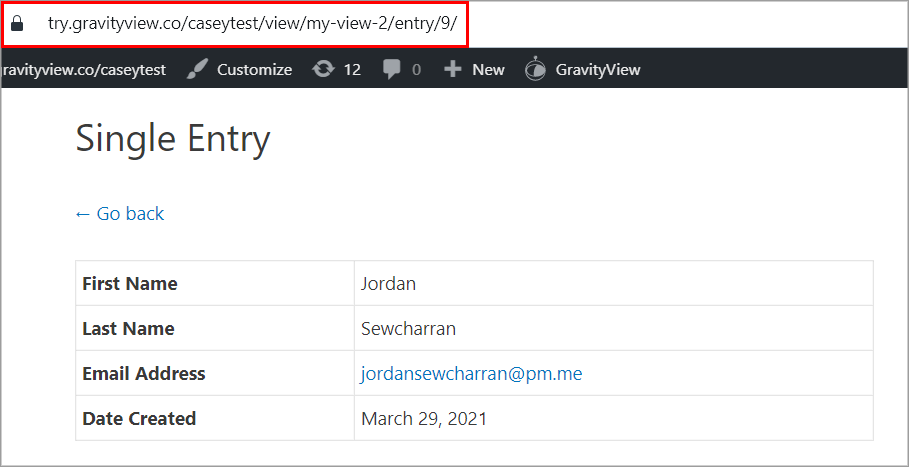
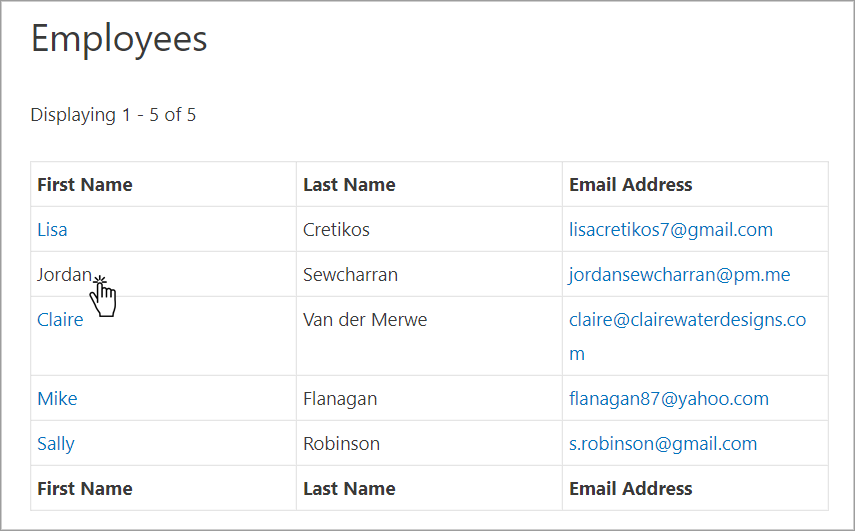 Once the single entry page has finished loading, copy the URL.
 Next, create a new post or page where you want to embed the entry. To do this, click on Posts (or pages) and then Add New. Next, paste the URL you copied from the single entry page into the text editor.
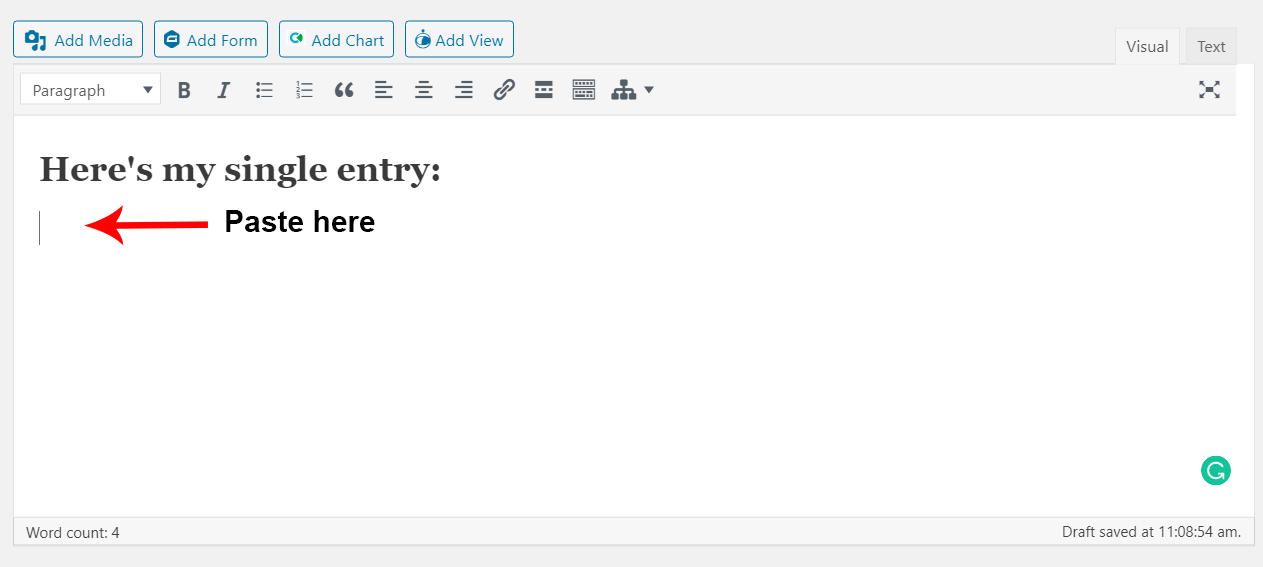 After pasting the URL, WordPress will display a placeholder showing where the entry will be embedded. If you’re using the WordPress Classic Editor, this will look similar to the screenshot below.
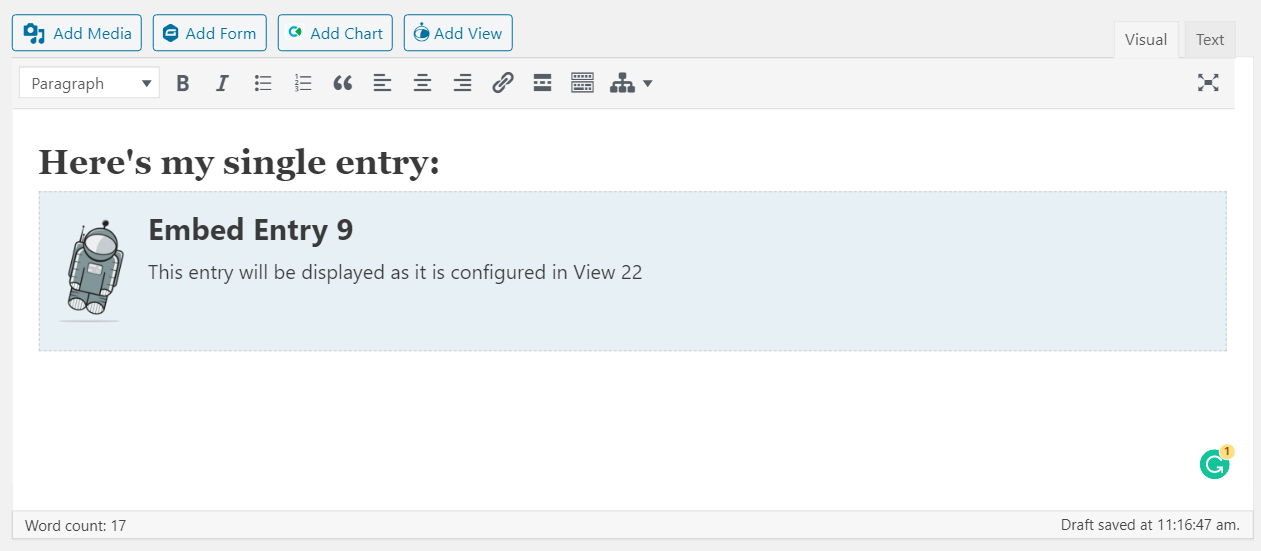 Once you’re happy, save your new post or page and click to view it on the front end.
Note: The WordPress Block Editor will display a preview of the embed. The preview loads without styling, so it may look strange. But don’t worry; your entry will look normal on the front end.
3. Adding Media #
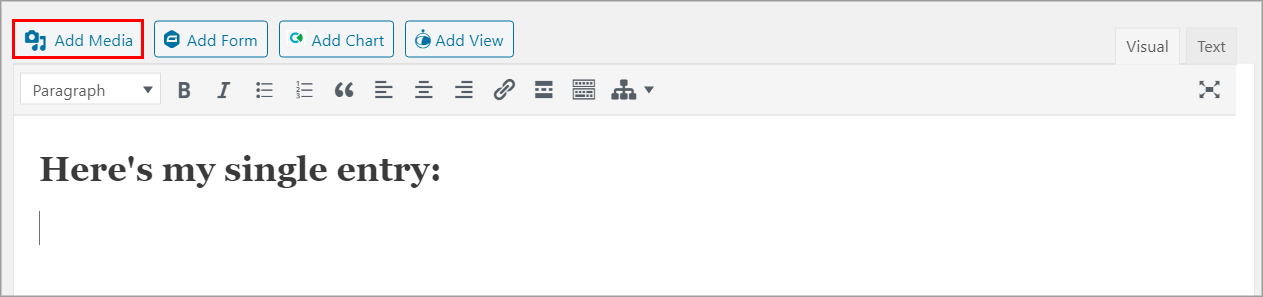
Instead of pasting the URL directly into your page editor, click the “Add Media” button and then click the link that says “Insert from URL”.
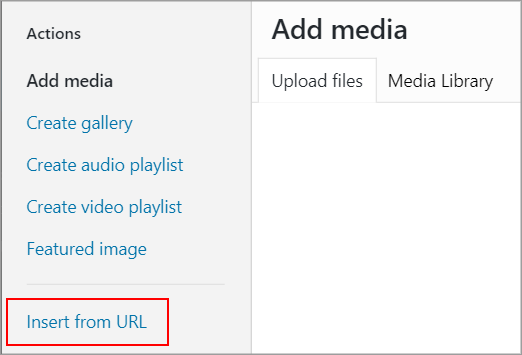
Paste the entry URL into the “Insert from URL” input field.

Finally, click “Insert into Post”.