
WPML and GravityView
If you want to have a View that is available in multiple languages, here’s how to do it using the popular translation plugin WPML.
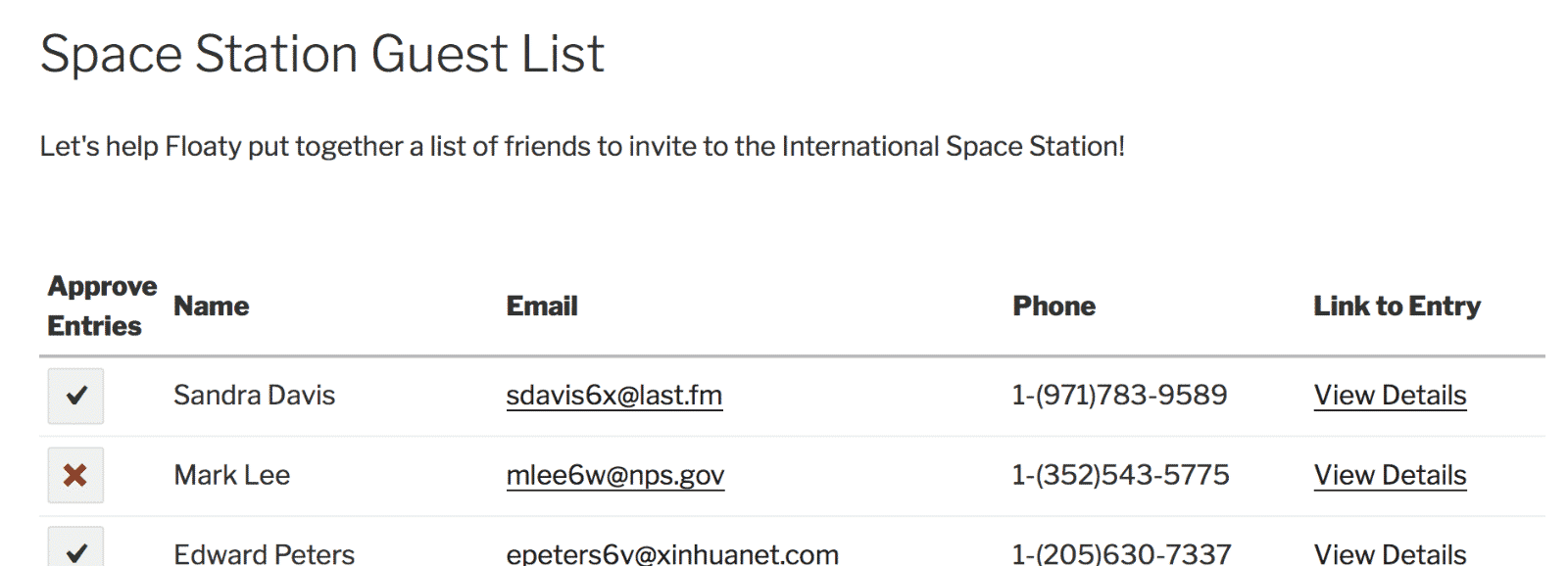
Floaty has a View that he wants to translate #
It’s an international guest list, so he wants to provide it in multiple languages.
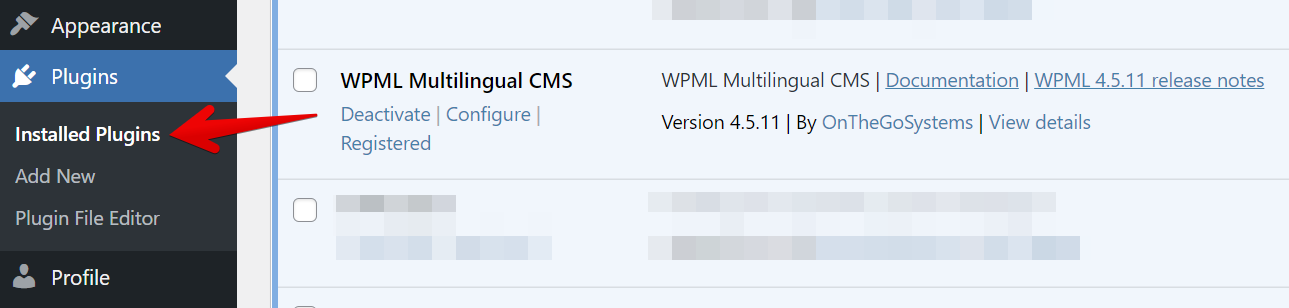
First, ensure you have WPML Multilingual CMS installed and activated. #
This requires the Multilingual CMS WPML package.
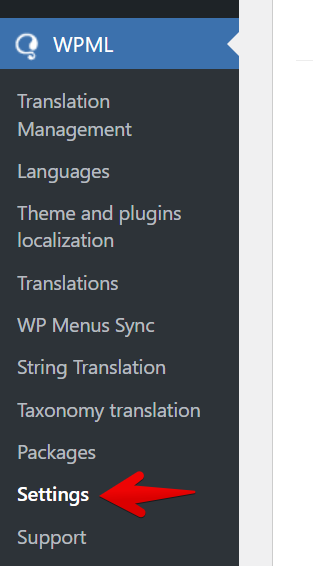
In the Dashboard, under the “WPML” menu, click on “Settings”: #
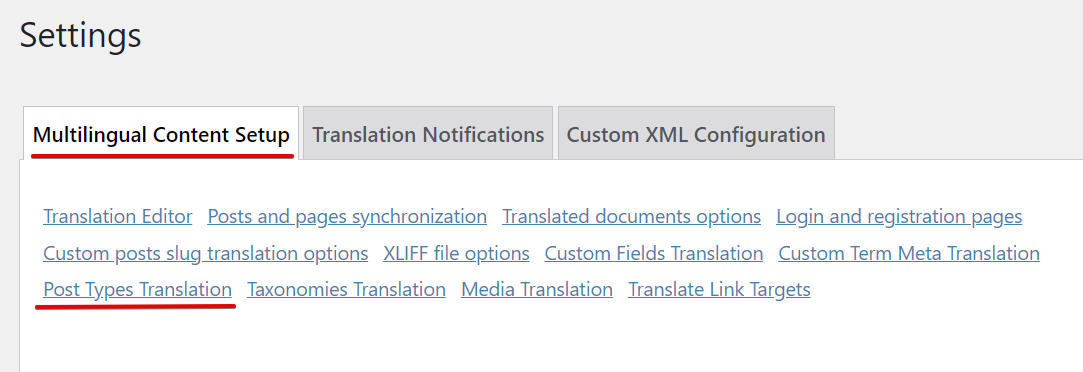
Click on the “Multilingual Content Setup” tab and then on “Post Types Translation” #
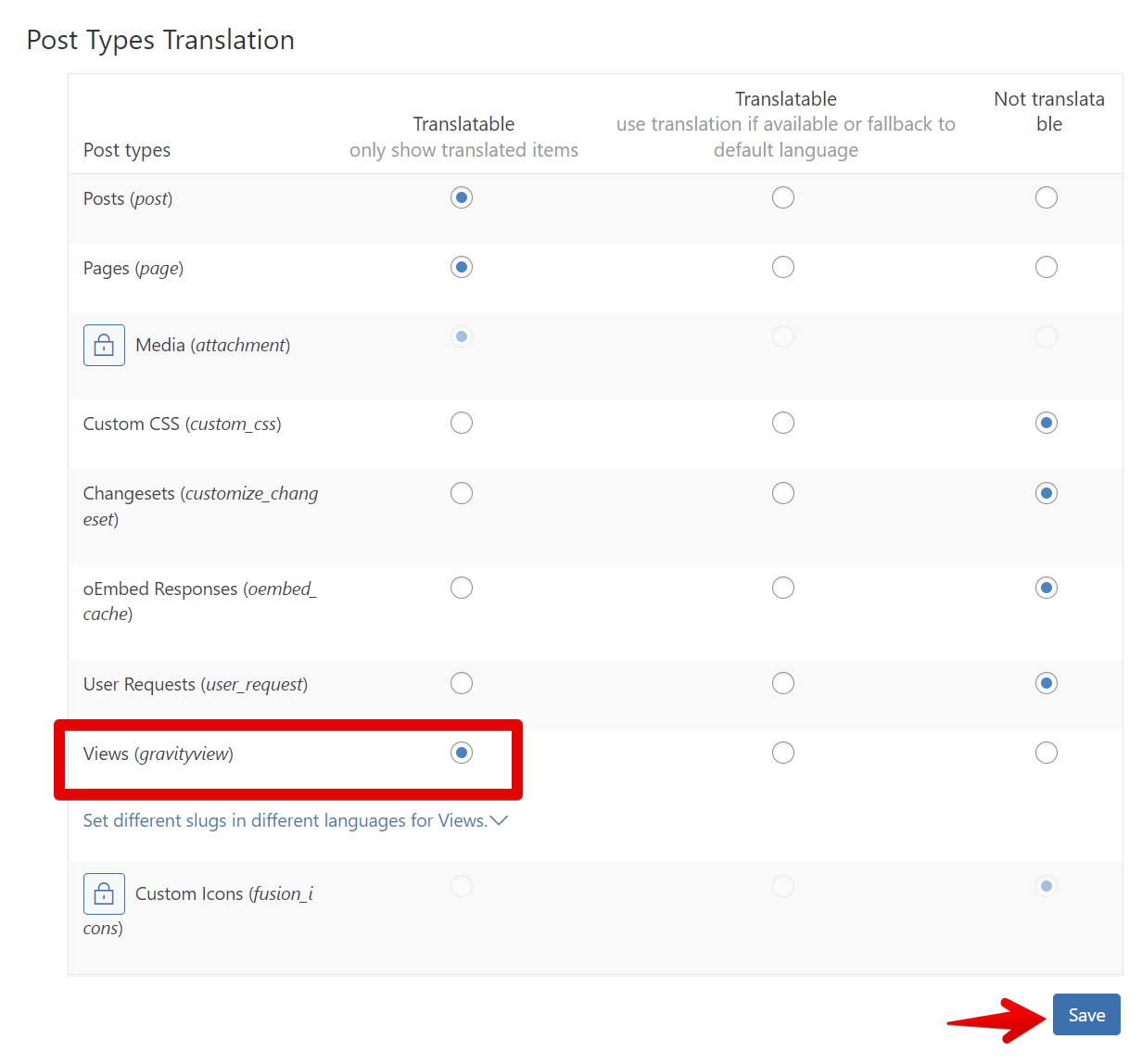
Set the “Views” custom post types to “Translate” #
This tells WPML you want to translate Views.
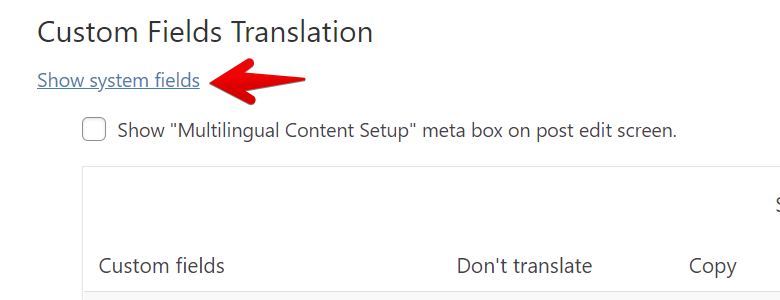
In the Custom Field Translation settings, click the “Show system fields” link #
The GravityView custom fields are hidden, so they don’t show up without a fuss!
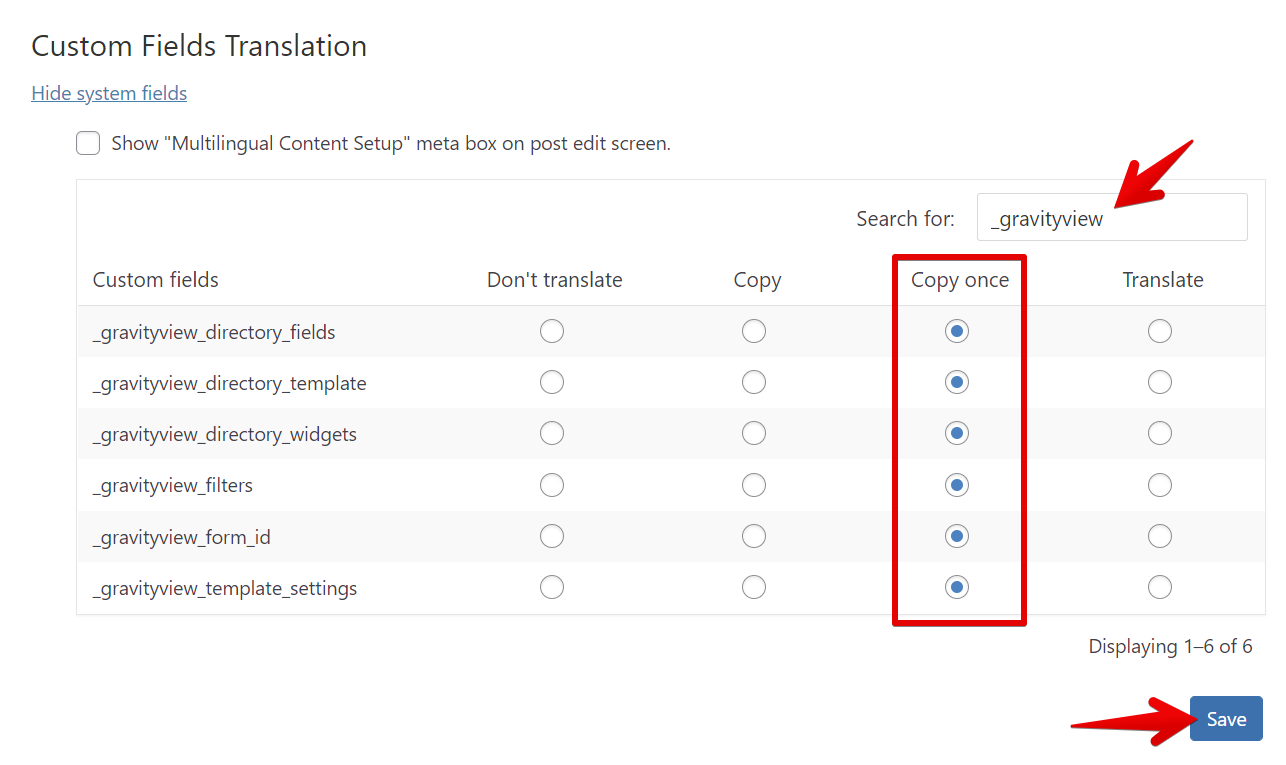
Search for “_gravityview” #
For every “Custom Field” item that starts with “_gravityview,” choose “Copy once.”
Note: If you don’t see any GravityView custom fields yet, you may not have created any Views. Create a View first, then return here.
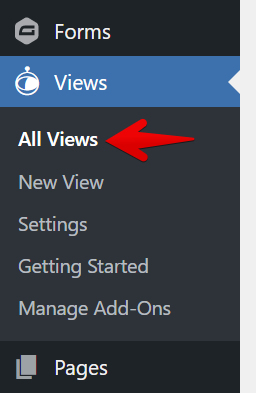
You will now see the translation column(s) #
Click the ✏️ icon to translate the View in the language of your choice.
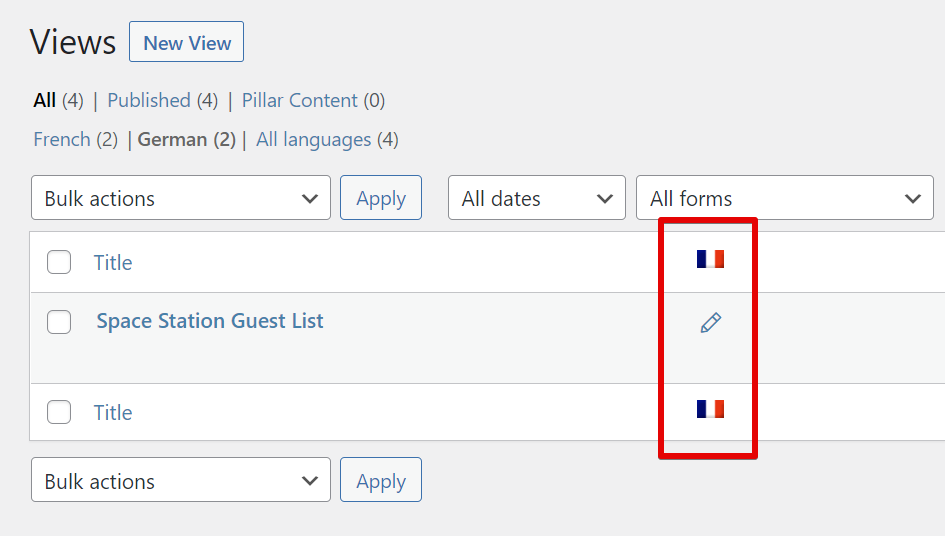
If the pencil icon doesn’t show up, try disabling GravityView’s No-Conflict mode.
Update Custom Content widgets and fields #
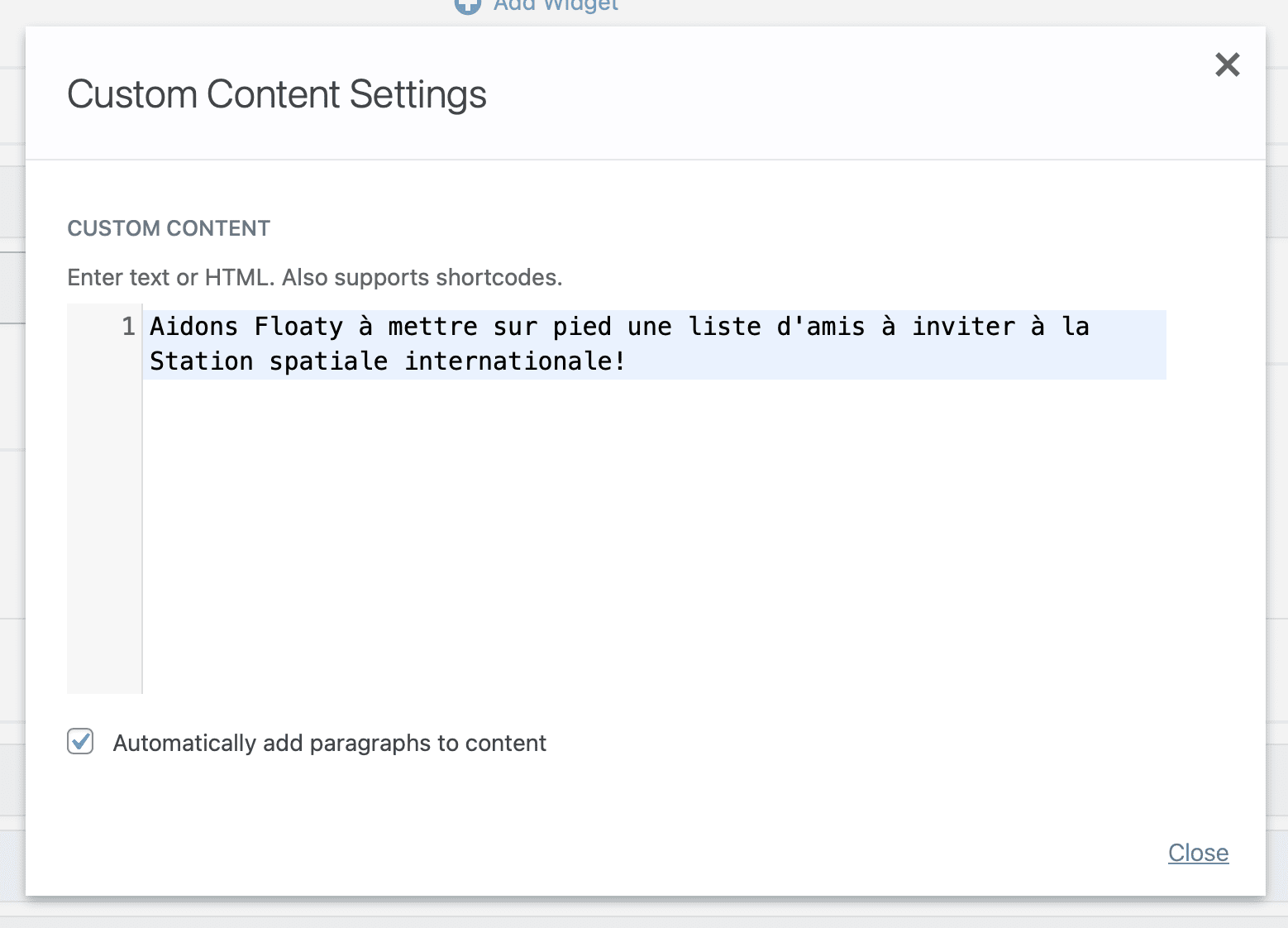
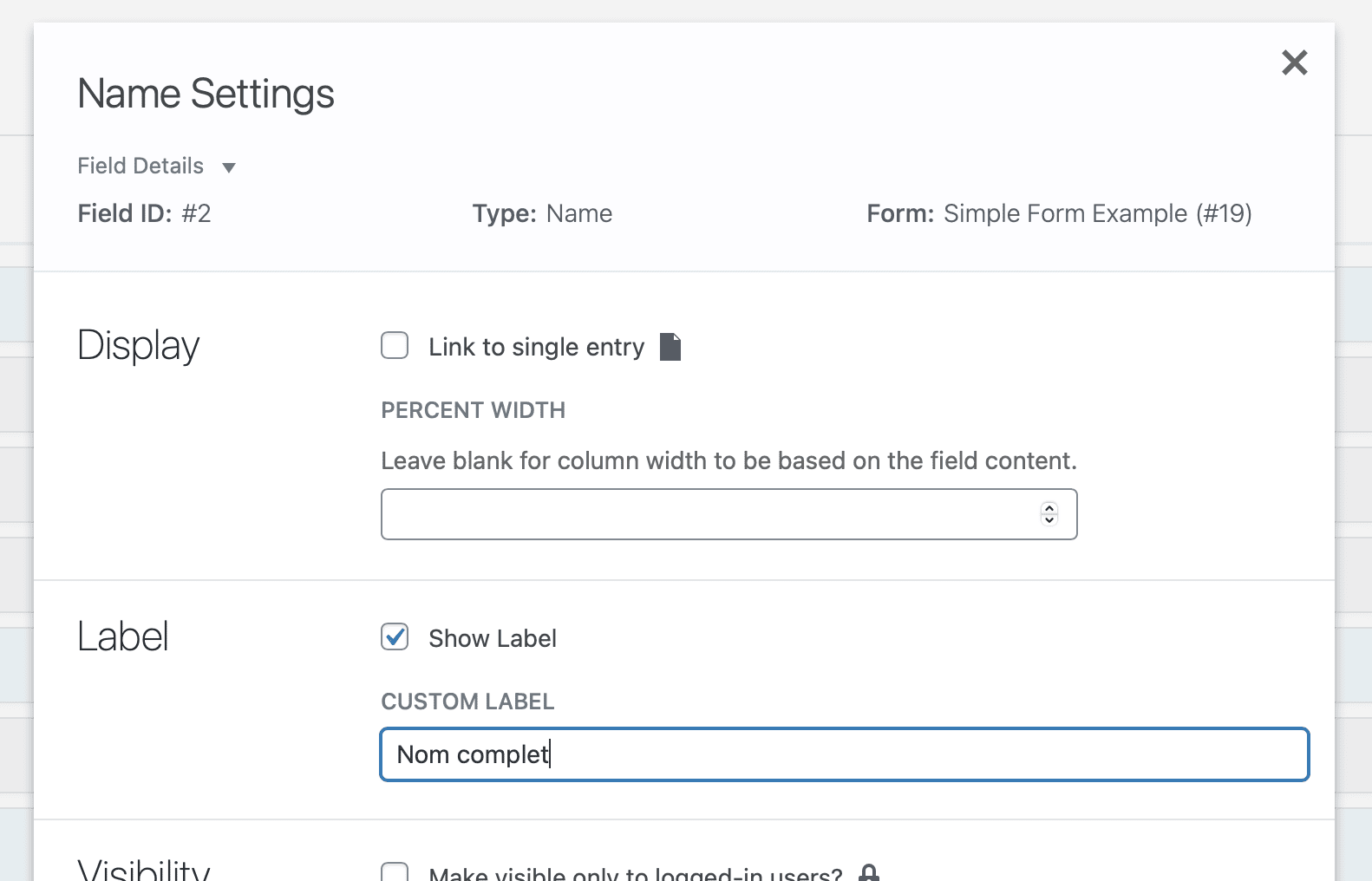
As well as field labels #
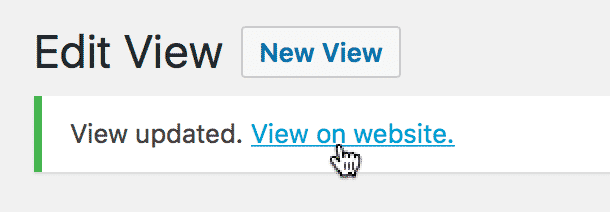
Once the View configuration is translated… #
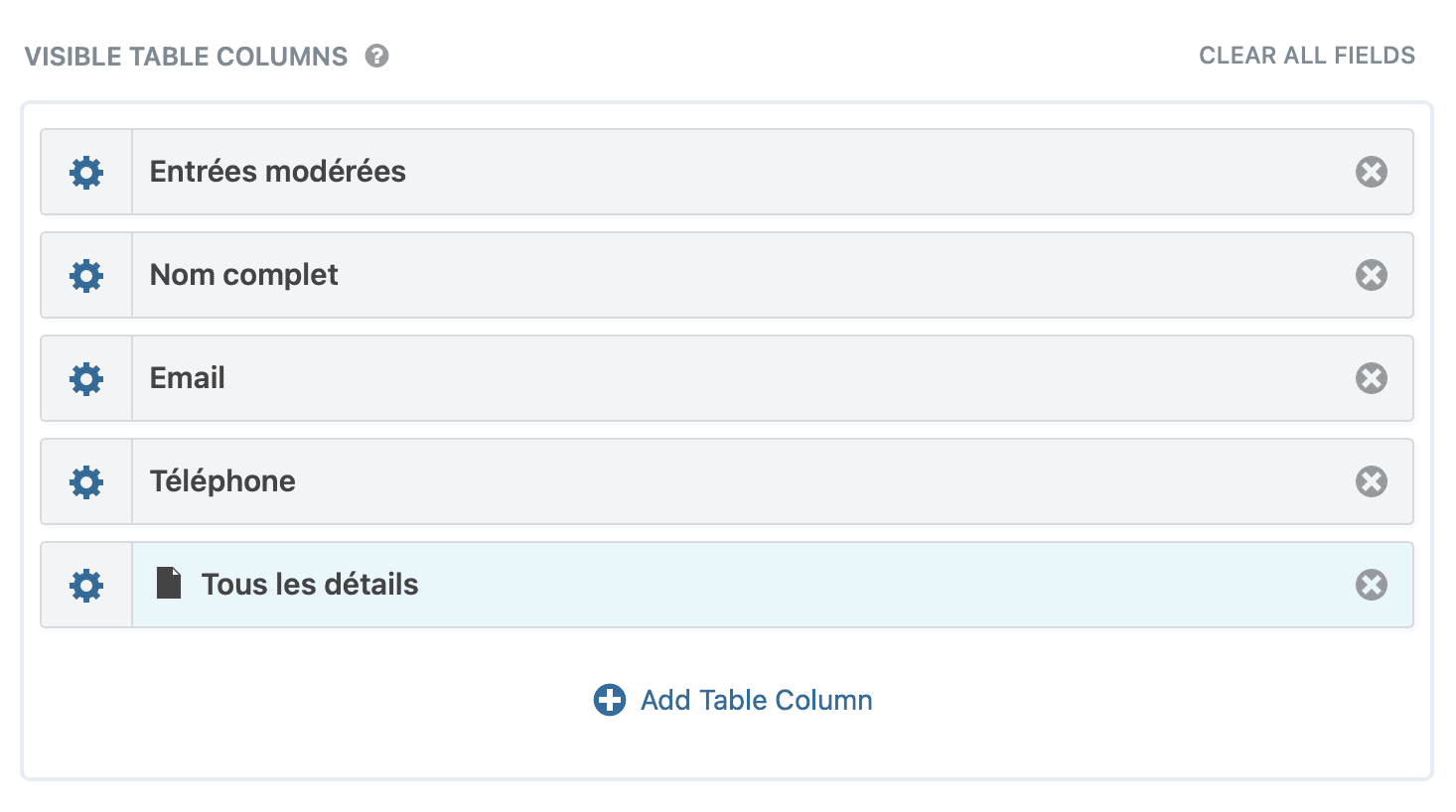
…save the View, and check out how it looks! #
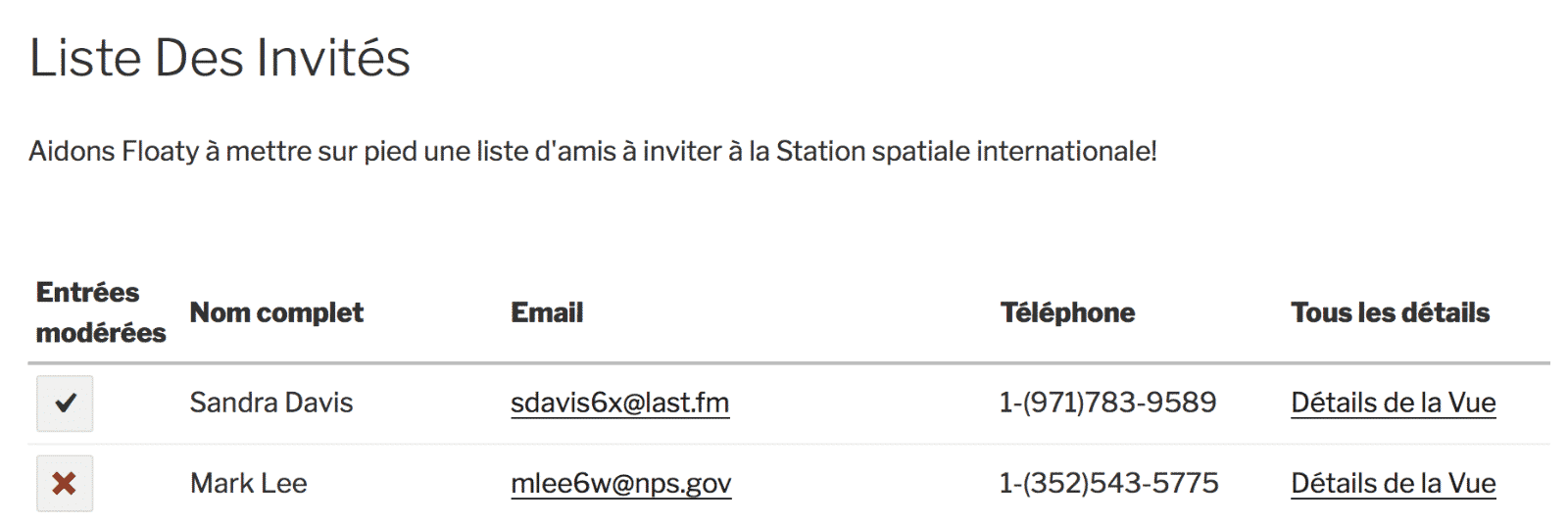
The translated View has translated labels and Custom Content widget #
But the entry content is not translated; it remains the same.
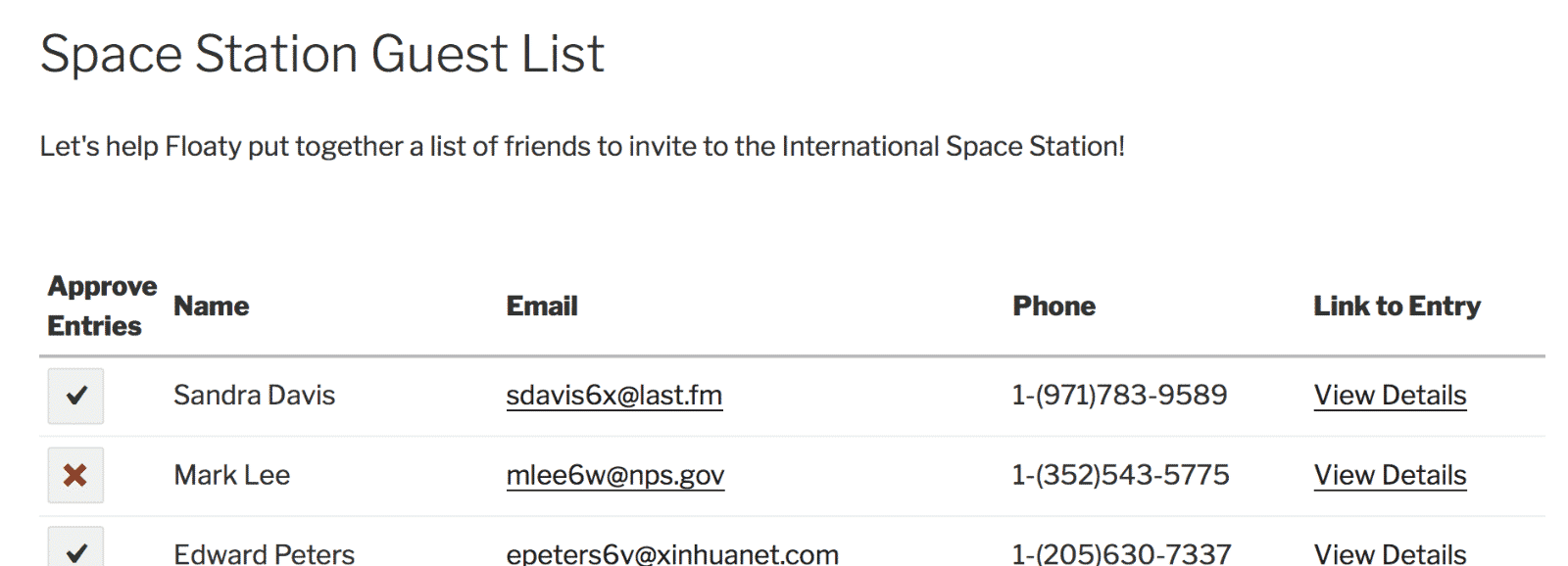
Let’s check out the English version again… #

…and it’s still the original translation. #
Hey, look at that: you have a translated View!
If you have further questions, please get in touch with our support.
Was this page helpful?


- Floaty has a View that he wants to translate
- First, ensure you have WPML Multilingual CMS installed and activated.
- In the Dashboard, under the “WPML” menu, click on “Settings”:
- Click on the “Multilingual Content Setup” tab and then on “Post Types Translation”
- Set the “Views” custom post types to “Translate”
- In the Custom Field Translation settings, click the “Show system fields” link
- Search for “_gravityview”
- You will now see the translation column(s)
- Update Custom Content widgets and fields
- As well as field labels
- Once the View configuration is translated…
- …save the View, and check out how it looks!
- The translated View has translated labels and Custom Content widget
- Let’s check out the English version again…
- …and it’s still the original translation.