
Adding Disqus comments to Entries
GravityView allows you to add Disqus comment forms to your entries. You don’t even need the Ratings & Reviews plugin to do this!
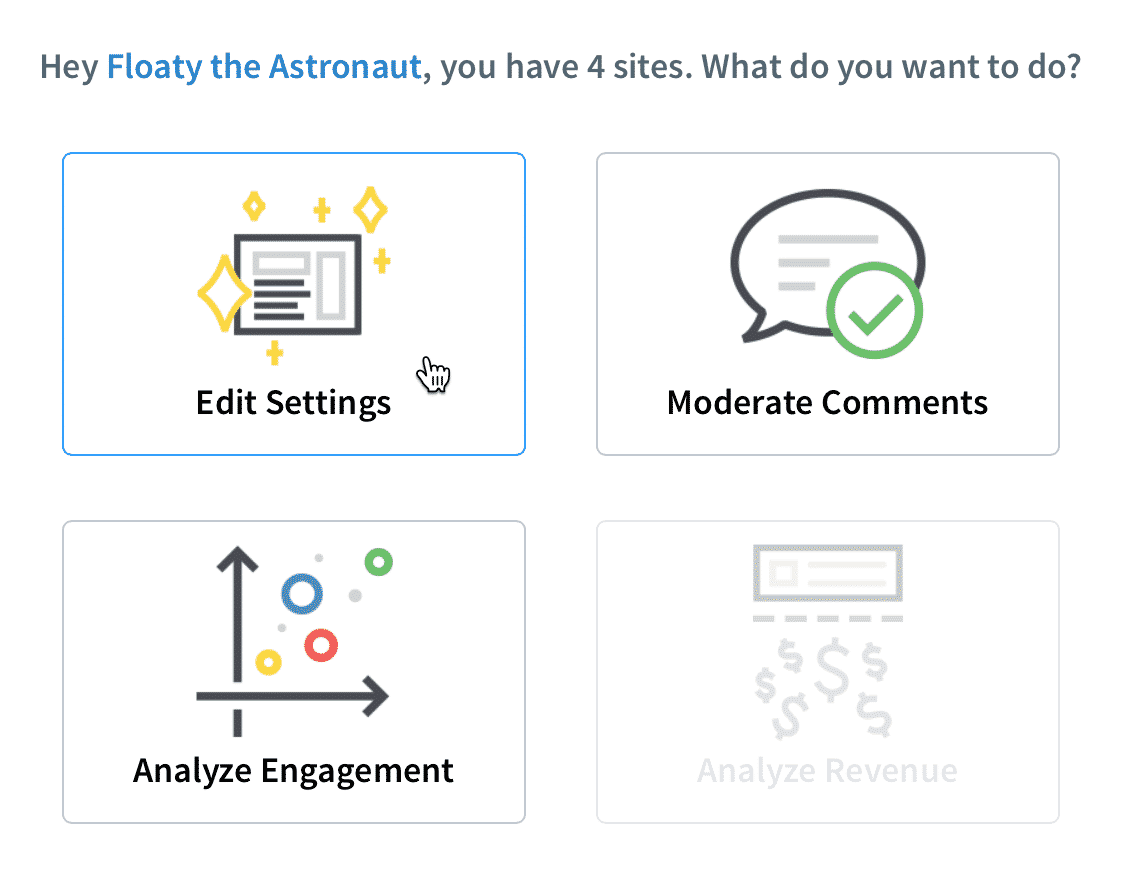
1. Log in to your Disqus account #
If you don’t have a Disqus account, go to https://disqus.com and sign up.
Once logged-in, click “Edit Settings”.
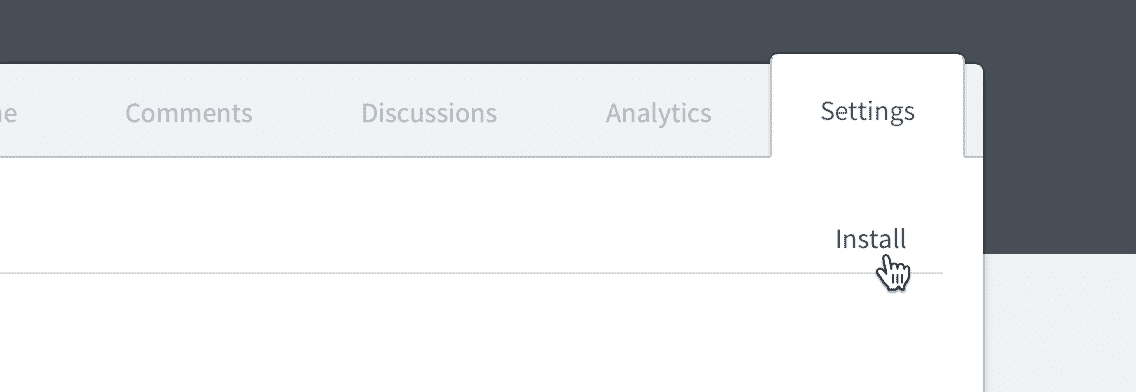
2. Then click the “Install” link #
3. Click the “Universal Code” option #
Don’t click WordPress, even though it seems to make sense!

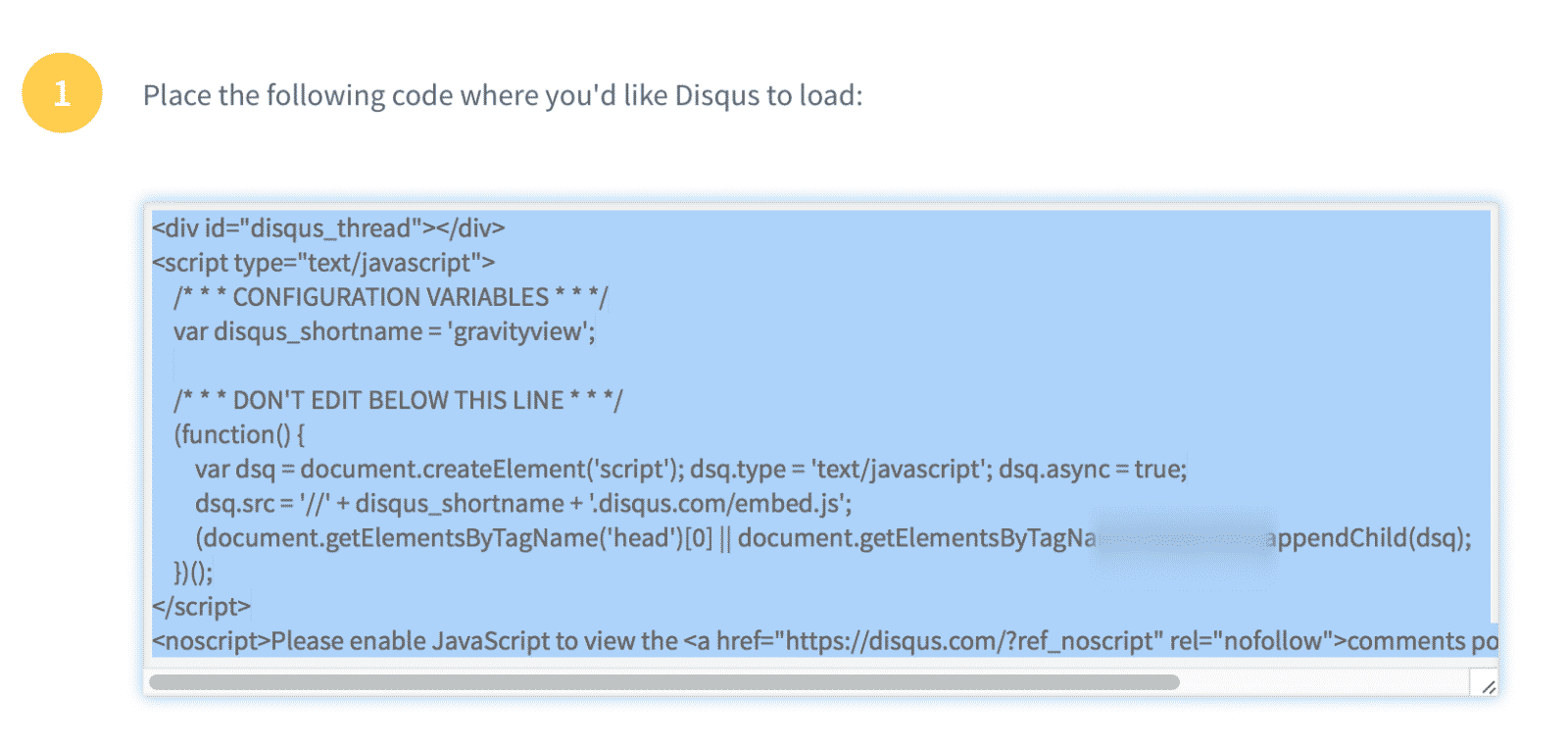
4. Copy the contents of the code sample #
Make sure to select all of the code in the box, then copy the text.
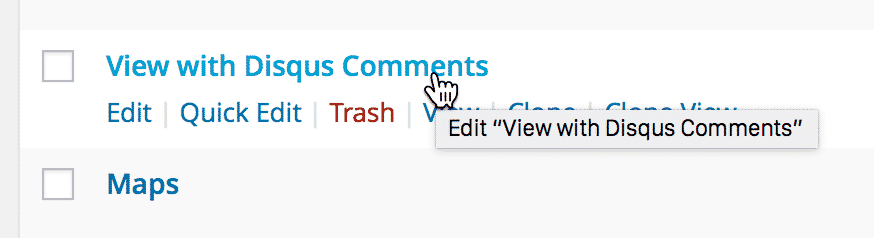
5. Go to your site and edit a View #
Under Views > All Views, click the View you want to add comments to.
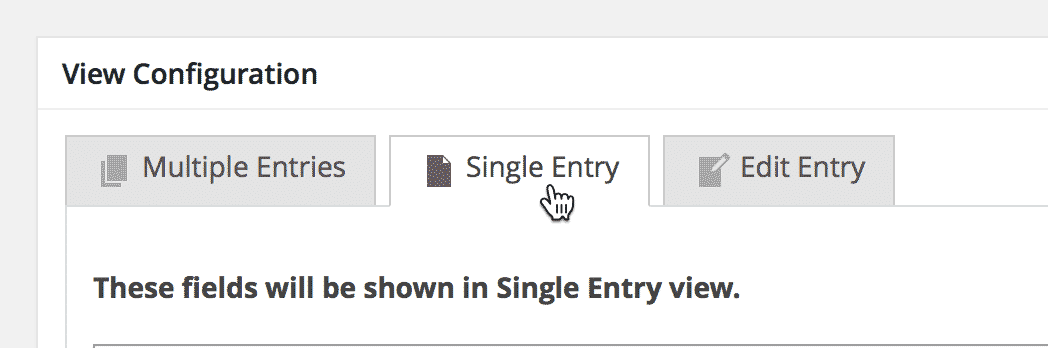
6. Click the “Single Entry” tab to configure it #
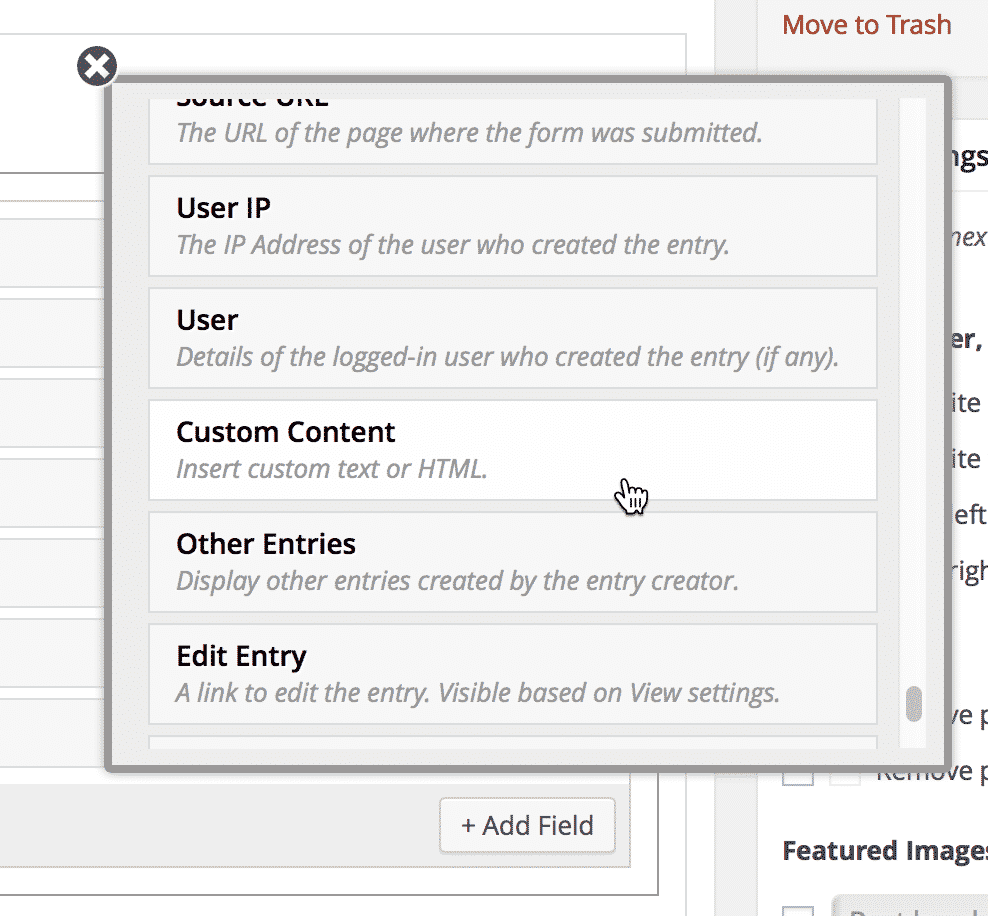
7. Click “Add Field”, then “Custom Content” #
This will add a Custom Content field.
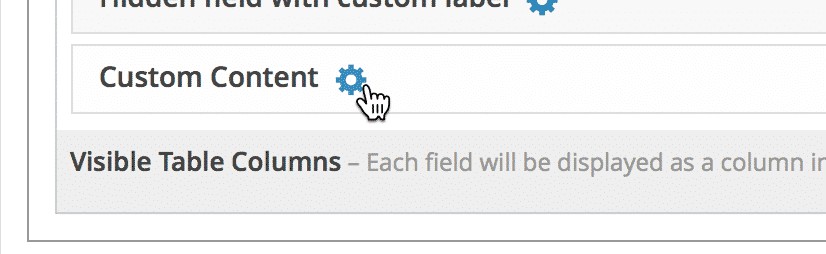
8. Click the gear icon to configure the Custom Content field #
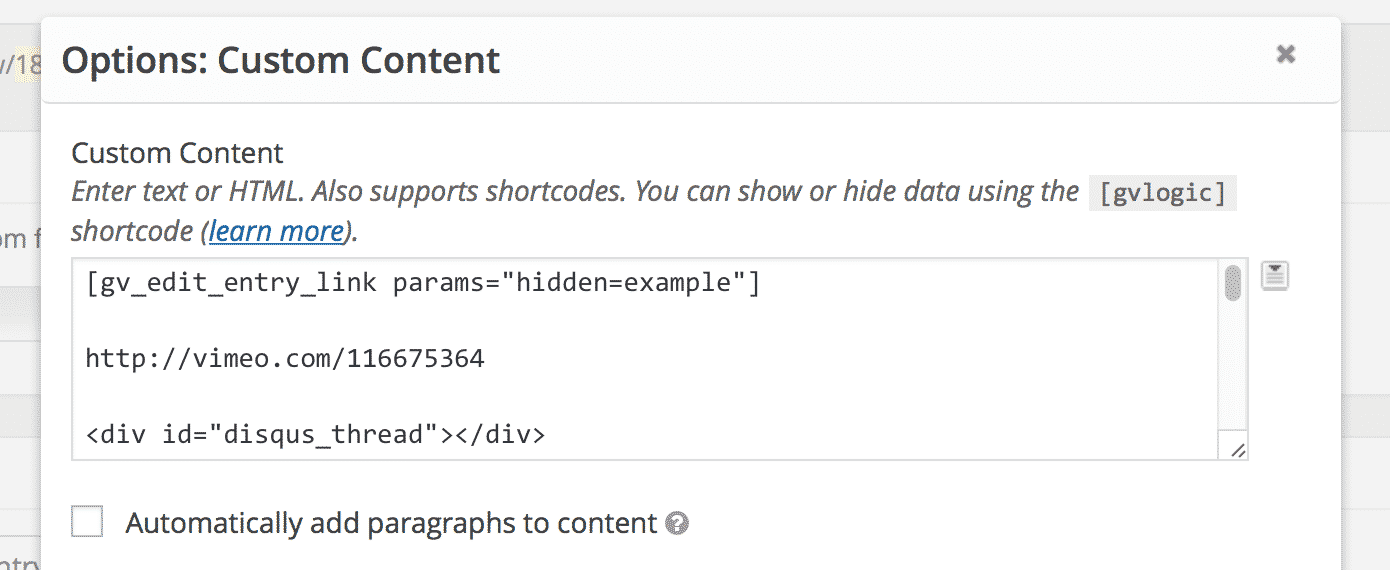
9. Paste the Disqus code you previously copied in the Custom Content text area #
10. …and make sure to customize the label #
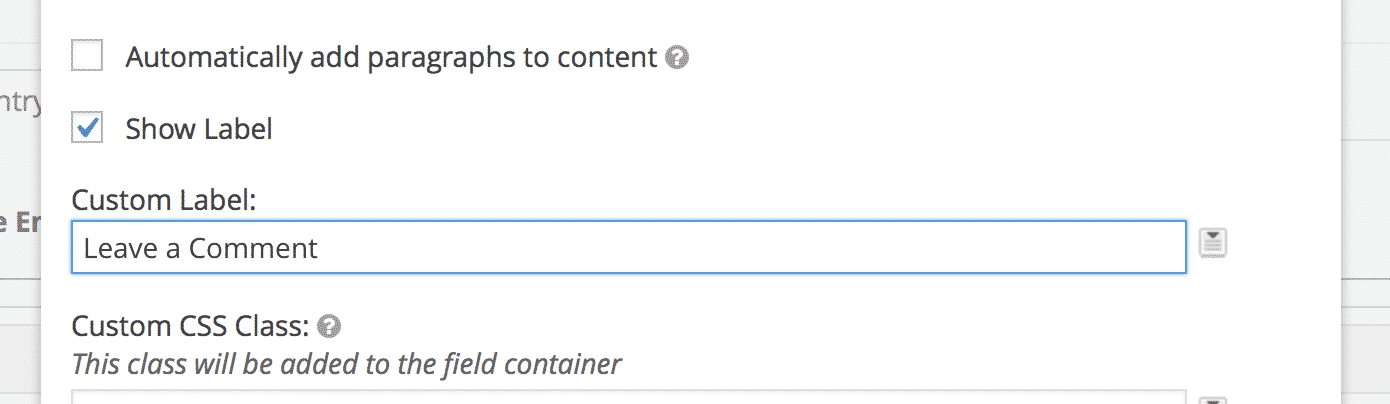
11. Close the Custom Content field #

12. Update the View #
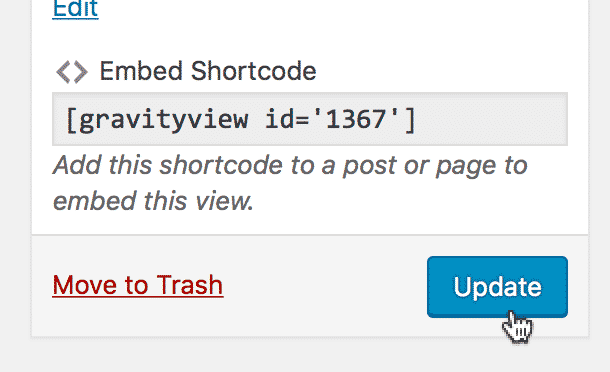
13. Click “View on website” to see your changes #
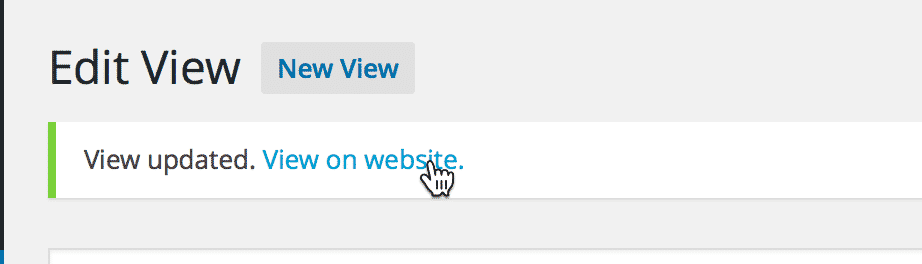
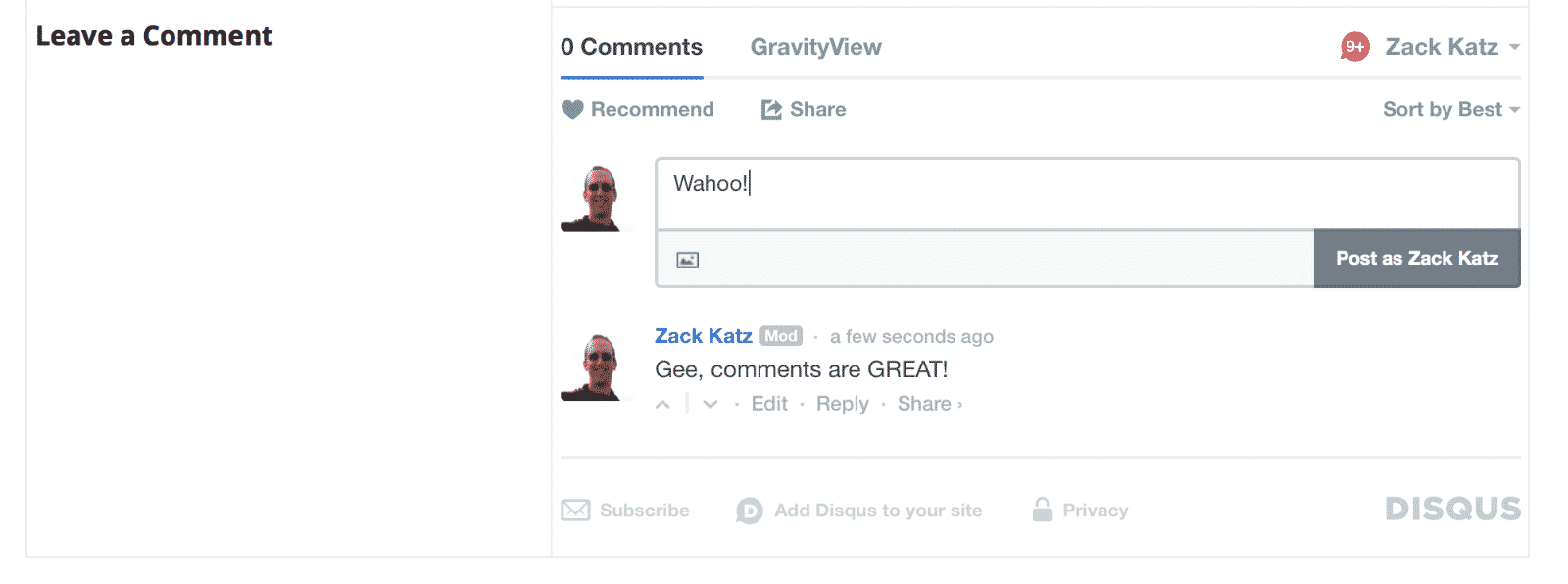
14. You now have a Disqus comment form on each entry! #
Was this page helpful?


Table Of Contents
- 1. Log in to your Disqus account
- 2. Then click the “Install” link
- 3. Click the “Universal Code” option
- 4. Copy the contents of the code sample
- 5. Go to your site and edit a View
- 6. Click the “Single Entry” tab to configure it
- 7. Click “Add Field”, then “Custom Content”
- 8. Click the gear icon to configure the Custom Content field
- 9. Paste the Disqus code you previously copied in the Custom Content text area
- 10. …and make sure to customize the label
- 11. Close the Custom Content field
- 12. Update the View
- 13. Click “View on website” to see your changes
- 14. You now have a Disqus comment form on each entry!