
Using the Search Bar “Clear” button
Added in Version 1.5.4
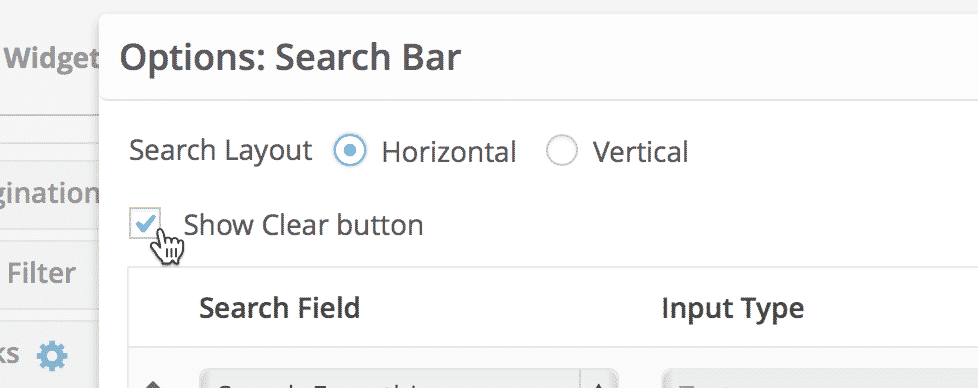
The Search bar widget has a “Show Clear button” setting. Enabling this setting allows users to clear entered search values.
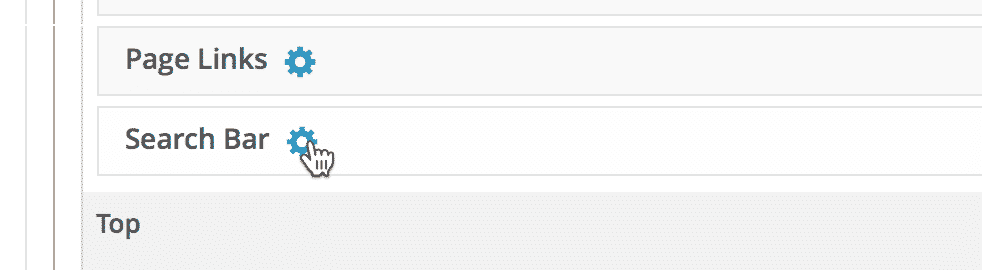
Click the gear to open the Search Bar widget settings #
Check the Show Clear button checkbox #
After checking the box, you can close the Search Bar settings window.
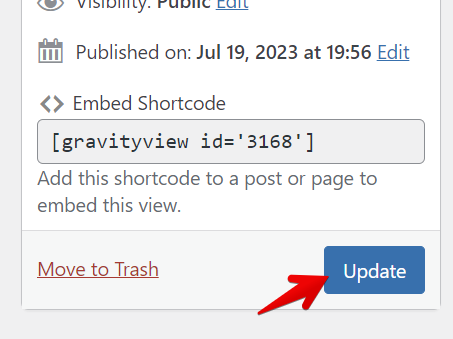
Save the View #
Click “View on website” to see the View #

You’ll not see anything difference at first… #

…until you start typing! #
When you start typing, the Reset button will appear. When clicking the Reset button, the form will revert to its original state.
If you have performed a search and the form has existing values, clicking Reset will return the original values to the form.

If you click Reset… #

…it’ll return to its original state. #

If there’s an existing search value, “Clear” will be visible on load #
Clicking clear will remove all search values.

Was this page helpful?


Table Of Contents
- Click the gear to open the Search Bar widget settings
- Check the Show Clear button checkbox
- Save the View
- Click “View on website” to see the View
- You’ll not see anything difference at first…
- …until you start typing!
- If you click Reset…
- …it’ll return to its original state.
- If there’s an existing search value, “Clear” will be visible on load