
How to track pageviews for entries using the [gv_pageviews] shortcode
Have you ever wanted to show how many times an entry has been visited by users? #
You can track the number of visitors to an entry using GravityView’s integration with the Pageviews plugin. It’s a great visitor counter plugin that now works to track hits to an entry.
When the
Pageviews plugin is active, add the [gv_pageviews] shortcode to a Single Entry context automatically works with GravityView to track visitors.
To track visitors to an entry:
1. Edit the entry
2. Click the Single Entry tab
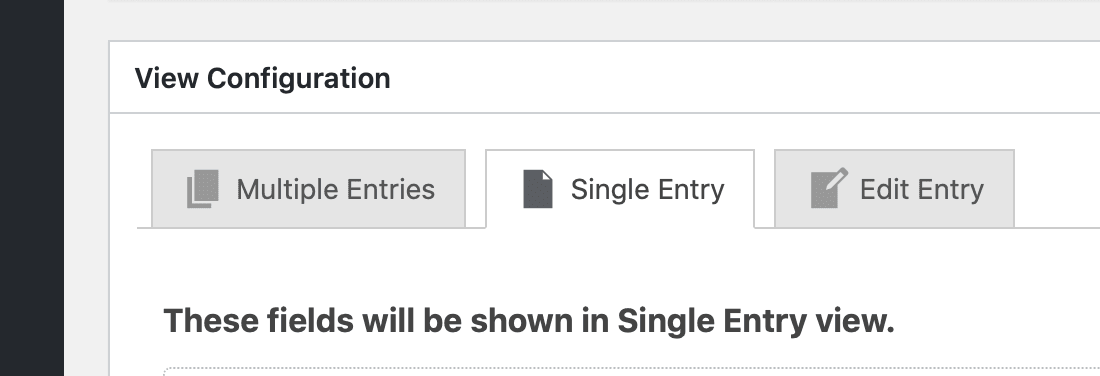
3. Add a Custom Content field to your entry
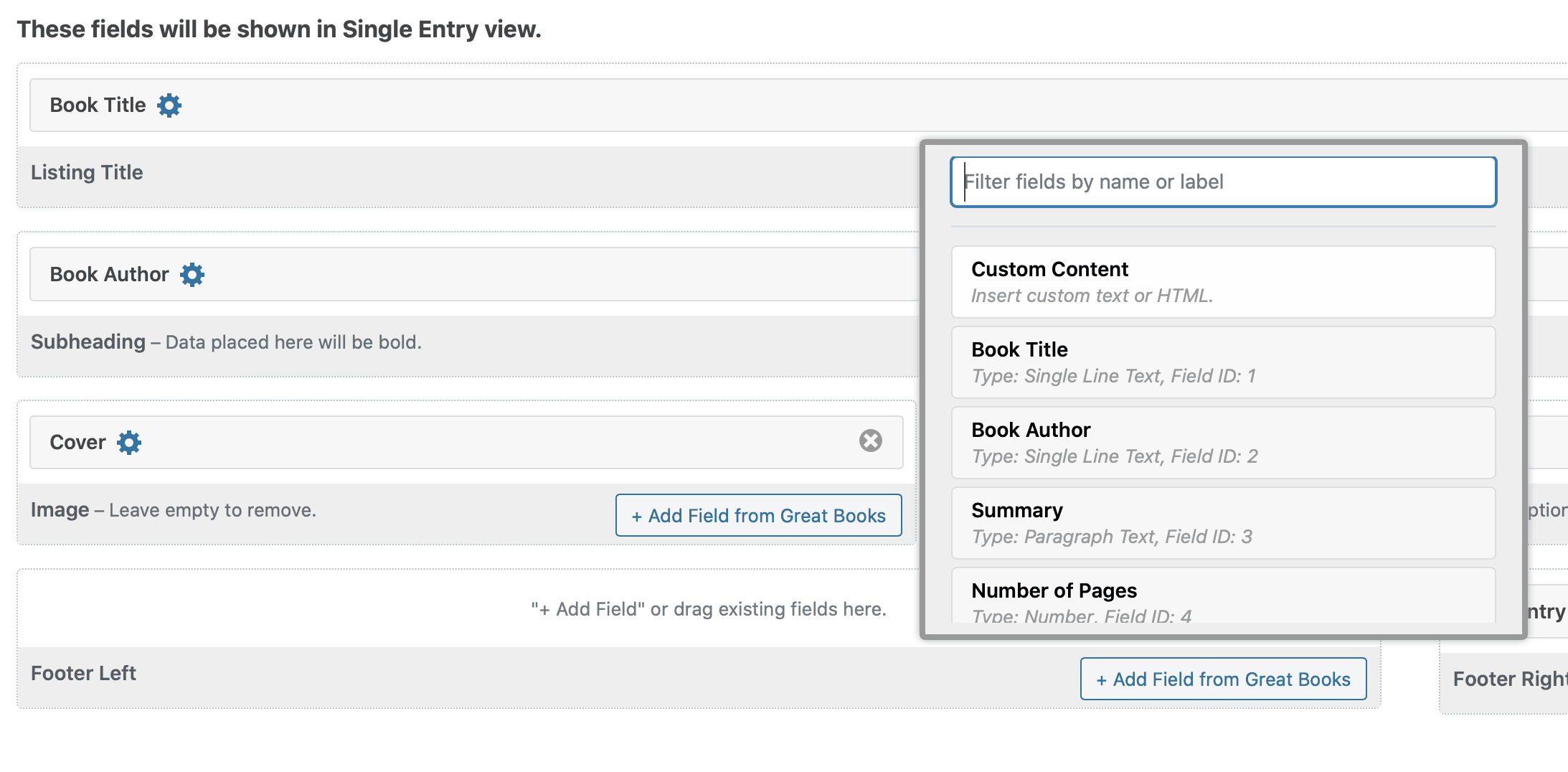
4. Click the gear icon on the newly-added Custom Content field
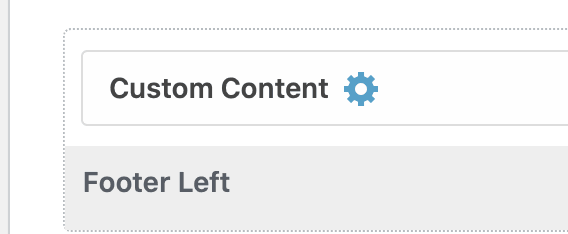
5. Add this shortcode to the Custom Content field: [gv_pageviews]
![Screenshot of a Custom Content field with '[gv_pageviews]' added.](https://staging.gravitykit.com/wp-content/uploads/2026/04/teurrx.png)
6. Update the View
7. Visit your entry and refresh the page!
You’ll see a number visible that shows the visit count after refreshing.
Warning: the animated GIF below has flashes as the page reloads.
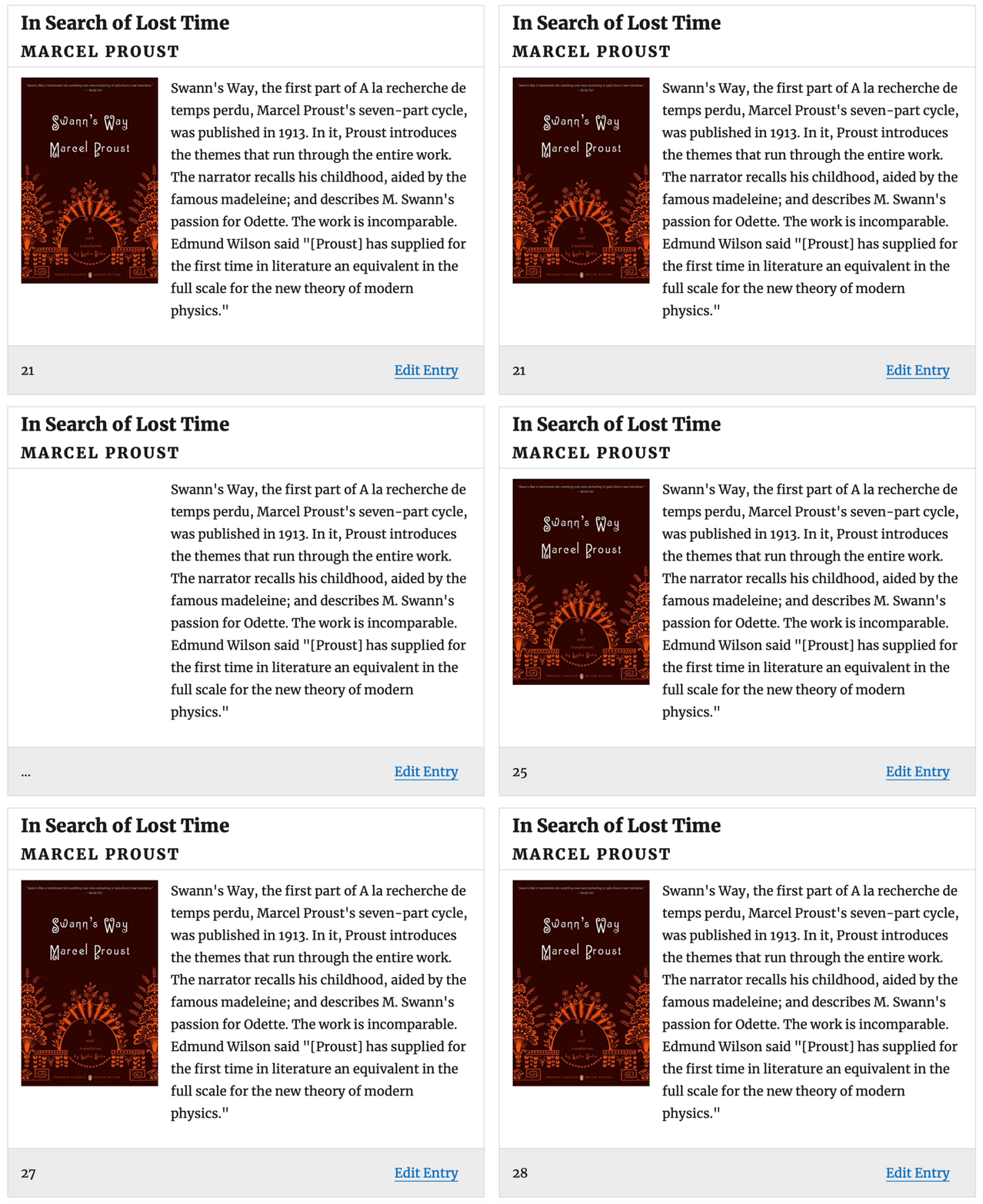
The [gv_pageviews] shortcode: #
The shortcode has these attributes:
preload(optional) The preload text, shown while calculating the number of visits. Default:...id(optional) If you want to display Is{entry_id}by default.
What happens when the shortcode is embedded in Multiple Entries?
If the
[gv_pageviews] shortcode is embedded anywhere other than a Single Entry context, the Pageview count will be shown, but not incremented.
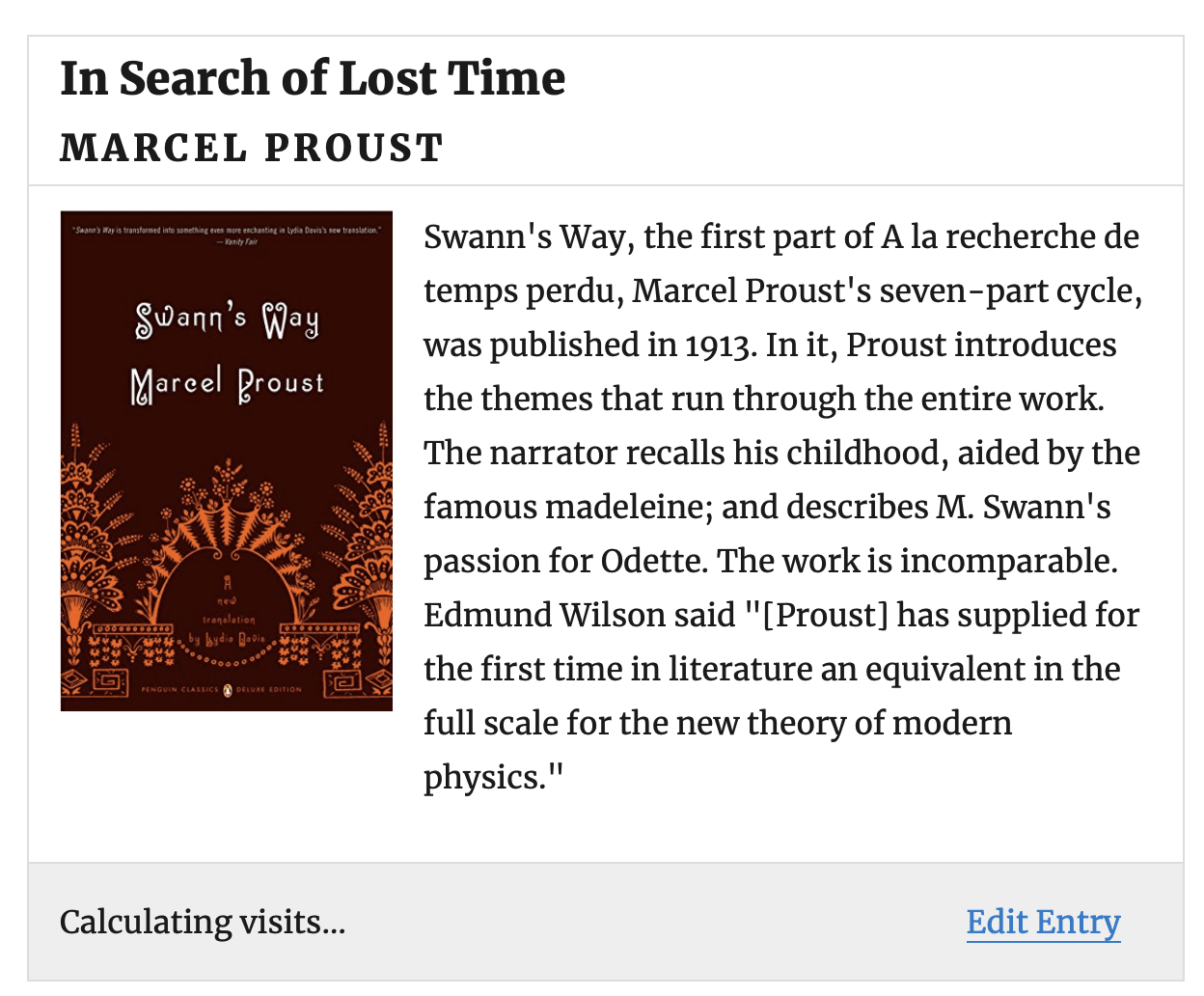
Show a different message while the visits count is calculating
To change the preloading message from
..., use the preload shortcode attribute.
This shortcode:
[gv_pageviews preload="Calculating visits…"] will show as this while the calculation is made:
The limitations:
- The shortcode cannot be used outside of the Custom Content field without supplying the
id. - Cannot sort, order, or filter by pageview (unfortunately!)