
How to embed a View inside another View
GravityView version 2.19 introduced an easy way to embed Views inside the Single Entry layouts of a View by using a new “GravityView View” field in the View editor:
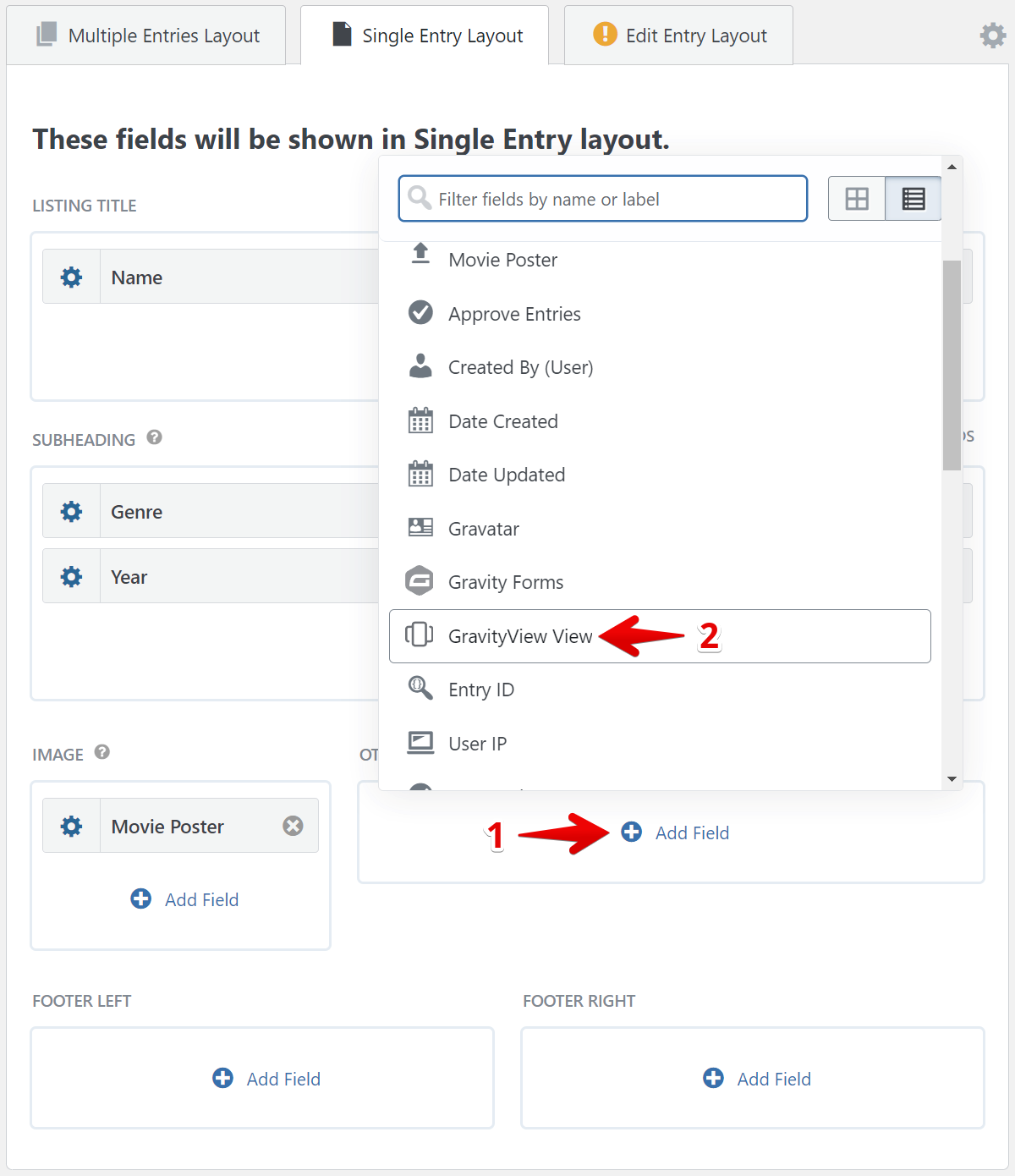
Once the field is added, you can access its settings to configure the embedded View.
Configuring the Embedded View #
After adding the GravityView View field, click the gear icon to open its settings. You’ll see the following options:
- View to display – Select which View to embed.
- Search Field – Choose a field from the embedded View’s form to filter by.
- Search Value – Set the value to match against. This supports merge tags, so you can reference a field from the current entry.
Example: Displaying related entries from a second form
Suppose you have two forms: an Organizations form and a Contacts form. The Contacts form has a field (e.g., “Organization Name”) that links each contact to an organization.
To show all contacts for a given organization on the Organization’s Single Entry page:
- Create a separate View using the Contacts form as its data source.
- Edit your Organizations View and go to the Single Entry layout.
- Add a GravityView View field and select the Contacts View.
- Set Search Field to the “Organization Name” field in the Contacts form.
- Set Search Value to the merge tag for the organization name in the current entry (e.g.,
{Organization Name:1}).
The embedded View will now display only contacts whose “Organization Name” matches the current organization entry.
Adding new related entries
If you also want users to add new contacts directly from the organization’s Single Entry page, you can embed the Contacts form using the Gravity Forms field. Entries submitted through an embedded form automatically store the parent entry’s ID via the gk_parent_entry_id meta, which you can use as the Search Field to connect everything together.